Claude Code ships with useful built-in slash commands — /clear, /compact, /init, /help. Most developers use those and stop there.
What fewer people know: you can create your own. Any workflow you repeat more than twice can become a /command that runs in one word. Here's how to build them.
How custom commands work
Claude Code looks for command definitions in a .claude/commands/ directory at your project root. Each file in that directory becomes a slash command named after the file.
.claude/
  commands/
    review.md         →  /review
    add-tests.md      →  /add-tests
    deploy-check.md   →  /deploy-check
    explain.md        →  /explain
When you type /review in a Claude Code session, Claude reads the contents of review.md and executes it as the prompt — with your current context, your CLAUDE.md conventions, and whatever you pass as arguments.
The file format is plain markdown. No special syntax required beyond an optional $ARGUMENTS placeholder.
Your first custom command
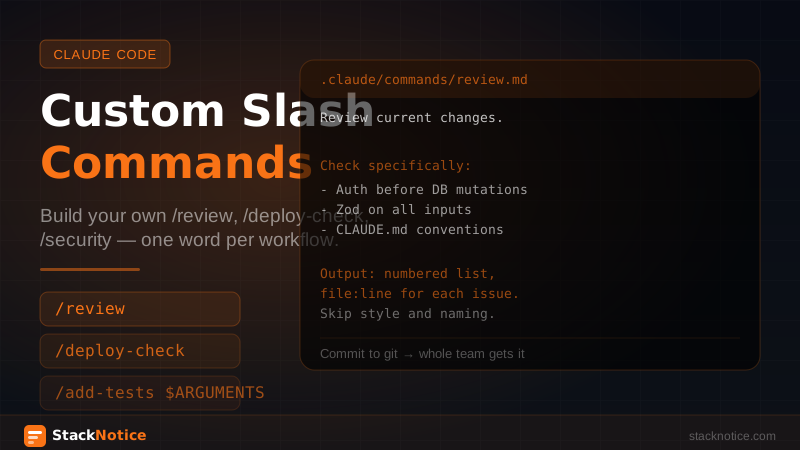
Create .claude/commands/review.md:
Review the code changes in the current working directory.

Check specifically:
- Auth: are there ownership checks before any DB mutation?
- Validation: are inputs validated with Zod before use?
- Conventions: does everything follow our CLAUDE.md rules?
- Error handling: are async operations wrapped correctly?

Output as a numbered list. File and line number for each issue.
Skip style, naming, and anything that's not a correctness concern.
Now in any Claude Code session:
> /review
Claude runs that exact prompt against your current context. Every time. No retyping.
Using $ARGUMENTS
The $ARGUMENTS placeholder lets you pass something dynamic to the command:
<!-- .claude/commands/explain.md -->
Explain $ARGUMENTS to a mid-level developer.

Keep it under 200 words. No jargon without definition.
Give one concrete example in our stack (Next.js, TypeScript, Drizzle).
Usage:
> /explain React Server Components
> /explain optimistic updates
> /explain Zod discriminated unions
Each runs the same structured prompt with the term substituted in. Consistent explanations, your stack's context, every time.
Practical commands worth building
/add-tests
<!-- .claude/commands/add-tests.md -->
Add tests for $ARGUMENTS.

Use Vitest. Test file goes next to the source file.
Test the happy path, one edge case, and one error case.
Do not test implementation details — test behavior and outputs.
Follow the existing test style in the codebase.
> /add-tests src/lib/stripe/webhooks.ts
/deploy-check
<!-- .claude/commands/deploy-check.md -->
We are about to deploy to production.

Review all staged changes.
Flag anything you would not ship right now.
One sentence per issue, most critical first.
If everything looks safe, say "Ready to deploy" and nothing else.
> /deploy-check
Run this before every deploy. The prompt forces a specific format — you're not getting a wall of hedged text, you're getting a list or a green light.
/refactor
<!-- .claude/commands/refactor.md -->
Refactor $ARGUMENTS.

Rules:
- Preserve all existing behavior exactly
- Do not change the public API or exports
- Follow our CLAUDE.md conventions
- Add a comment if the refactored version is non-obvious

After refactoring, list what you changed and why.
> /refactor src/db/queries/users.ts
/security
<!-- .claude/commands/security.md -->
Security review of $ARGUMENTS.

Check for:
- Missing authentication before data access
- Missing ownership verification before mutations
- Unvalidated inputs reaching the database
- Hardcoded secrets or credentials
- Exposed sensitive data in API responses

Output issues only. No compliments. No style feedback.
> /security src/api/
/commit
<!-- .claude/commands/commit.md -->
Write a git commit message for the staged changes.

Format: imperative mood, max 72 characters first line.
Second paragraph if needed for context.
Do not mention file names. Describe what changed and why.
Do not write the commit — just output the message.
> /commit
Sharing commands with the team
Because .claude/commands/ lives in the project directory, you can commit it to git. Every developer on the team gets the same commands automatically when they clone or pull.
This is one of the most underused parts of the team CLAUDE.md setup. Team-wide conventions go in CLAUDE.md. Team-wide workflows go in .claude/commands/. Together they mean every dev on the project uses Claude the same way — without any coordination overhead.
git add .claude/commands/
git commit -m "add team Claude Code commands"
One push. Everyone has /review, /deploy-check, /security available immediately.
Personal commands vs project commands
Project commands in .claude/commands/ apply to the current repo. For commands you want everywhere — across all projects, all machines — put them in ~/.claude/commands/ in your home directory.
~/.claude/
  commands/
    standup.md      →  /standup (available everywhere)
    summarize.md    →  /summarize (available everywhere)

project/
  .claude/
    commands/
      review.md     →  /review (this project only)
If a command name exists in both places, the project command takes precedence. This lets you override global commands with project-specific versions when needed.
A useful global command:
<!-- ~/.claude/commands/standup.md -->
Based on the git log from the last 24 hours and any open files,
write a standup update.

Format:
- Yesterday: what I completed
- Today: what I'm working on
- Blockers: anything slowing progress (if none, omit)

Keep it under 5 bullet points total. Skip housekeeping commits.
> /standup
Commands vs hooks: what's the difference
Hooks run automatically in response to Claude's actions — before a file write, after a bash command. You don't trigger them manually.
Custom commands are the opposite: you trigger them explicitly, on demand, when you want a specific workflow to run. They're prompts, not automation.
Use hooks for things that must always happen (enforce conventions, block forbidden patterns, notify on completion). Use custom commands for workflows you want on demand but don't want running automatically on every action.
Combining commands with extended thinking
For complex commands — architecture review, security audit, full refactor — you can mention extended thinking in the command itself:
<!-- .claude/commands/arch-review.md -->
Architecture review of $ARGUMENTS.

Think through this carefully before responding.
Consider: scalability, maintainability, security surface area,
consistency with existing patterns in the codebase.

Output: what's solid, what should change, what's a risk.
Prioritize by impact.
Claude will apply deeper reasoning to the command automatically when you use language that signals complexity. See the extended thinking guide for when this matters most.
The commands worth building first
If you're starting from zero, these three have the highest daily return:
/review— runs every time you finish a feature before pushing/deploy-check— runs before every production deploy/commit— generates commit messages so you never write a lazy "fix stuff" message
Build those three, commit them to the repo, and you've added structure to the most repetitive parts of a coding day without changing anyone's workflow.
Related: