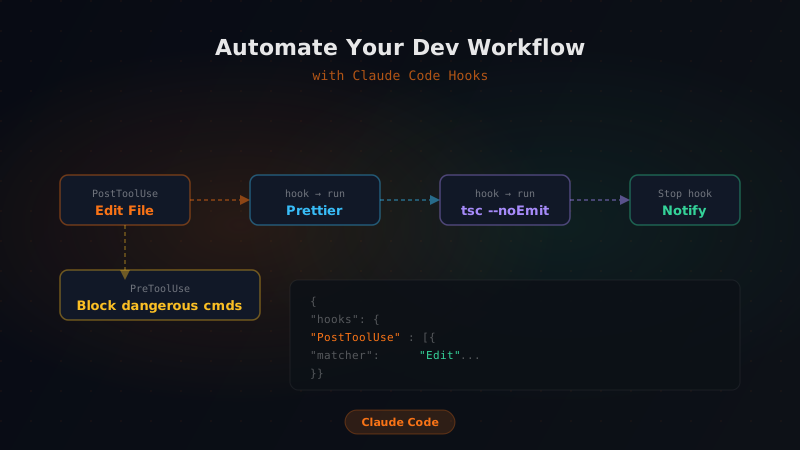
Claude Code hooks let you run shell commands automatically at specific points in Claude's lifecycle — before an edit, after a tool call, when Claude stops, when you get a notification. No more "Claude changed my files but forgot to run the formatter." Hooks make that impossible.
This guide covers every hook type with working examples you can drop into your setup today.
What Are Hooks?
Hooks are shell commands defined in your Claude Code settings that fire at predetermined events. They run deterministically — not because Claude decides to run them, but because the harness executes them automatically.
The key insight: hooks are not prompts. You can't ask Claude to "always run prettier after editing." You can hook it so it always does, whether Claude thinks to or not. For more ways to build on this automation, see getting started with Claude Code.
There are four hook events:
| Event | When it fires |
|---|---|
PreToolUse | Before Claude uses any tool (read, edit, bash, etc.) |
PostToolUse | After Claude uses a tool |
Notification | When Claude is waiting for your input or permission |
Stop | When Claude finishes a response and stops |
Where Hooks Live
Hooks are configured in your Claude Code settings JSON. You can edit it directly or use the /hooks command inside Claude Code for an interactive menu.
Settings file location:
- Global (all projects):
~/.claude/settings.json - Project-only:
.claude/settings.jsonin your repo
The project file is committed to git — great for sharing hook configs with your team.
{
  "hooks": {
    "PostToolUse": [
      {
        "matcher": "Edit",
        "hooks": [
          {
            "type": "command",
            "command": "prettier --write \"$CLAUDE_TOOL_INPUT_FILE_PATH\""
          }
        ]
      }
    ]
  }
}
Environment Variables Available in Hooks
Claude Code passes context to your hooks via environment variables:
| Variable | Available in | Value |
|---|---|---|
$CLAUDE_TOOL_NAME | All hooks | Name of the tool (Edit, Bash, Read, etc.) |
$CLAUDE_TOOL_INPUT_FILE_PATH | PostToolUse on Edit | Path of the file just edited |
$CLAUDE_TOOL_INPUT_COMMAND | PostToolUse on Bash | The command Claude just ran |
$CLAUDE_NOTIFICATION_MESSAGE | Notification | The message Claude is displaying |
Practical Hook Examples
1. Auto-format every file Claude edits
The most common hook. Claude edits a file, Prettier runs immediately:
{
  "hooks": {
    "PostToolUse": [
      {
        "matcher": "Edit",
        "hooks": [
          {
            "type": "command",
            "command": "prettier --write \"$CLAUDE_TOOL_INPUT_FILE_PATH\" 2>/dev/null || true"
          }
        ]
      }
    ]
  }
}
The || true prevents the hook from blocking Claude if Prettier fails on a non-supported file type.
2. Run TypeScript type check after edits to .ts files
{
  "hooks": {
    "PostToolUse": [
      {
        "matcher": "Edit",
        "hooks": [
          {
            "type": "command",
            "command": "if [[ \"$CLAUDE_TOOL_INPUT_FILE_PATH\" == *.ts || \"$CLAUDE_TOOL_INPUT_FILE_PATH\" == *.tsx ]]; then npx tsc --noEmit 2>&1 | head -20; fi"
          }
        ]
      }
    ]
  }
}
This runs a type check only on TypeScript files and outputs the first 20 lines of errors — Claude reads this output and can immediately fix what it broke.
3. Inject dynamic context at session start
Use the PreToolUse event on the very first tool call to inject context Claude wouldn't have otherwise:
{
  "hooks": {
    "PreToolUse": [
      {
        "matcher": ".*",
        "hooks": [
          {
            "type": "command",
            "command": "echo \"Current branch: $(git branch --show-current). Last 3 commits: $(git log --oneline -3)\""
          }
        ]
      }
    ]
  }
}
Claude reads this output and uses it as context. You can make it as dynamic as you want — pull sprint info, environment variables, deployment status.
4. Desktop notifications when Claude needs your input
On macOS:
{
  "hooks": {
    "Notification": [
      {
        "matcher": ".*",
        "hooks": [
          {
            "type": "command",
            "command": "osascript -e 'display notification \"Claude needs your attention\" with title \"Claude Code\"'"
          }
        ]
      }
    ]
  }
}
On Linux (requires notify-send):
{
  "hooks": {
    "Notification": [
      {
        "matcher": ".*",
        "hooks": [
          {
            "type": "command",
            "command": "notify-send 'Claude Code' 'Waiting for your input'"
          }
        ]
      }
    ]
  }
}
Now you can walk away while Claude works on a long task and get pinged when it needs you.
5. Auto-run tests after Claude finishes
{
  "hooks": {
    "Stop": [
      {
        "matcher": ".*",
        "hooks": [
          {
            "type": "command",
            "command": "npm test --silent 2>&1 | tail -5"
          }
        ]
      }
    ]
  }
}
Claude sees the test results when it stops, so if tests are failing it knows immediately — even if it forgot to run them.
6. Prevent commits to main branch
{
  "hooks": {
    "PreToolUse": [
      {
        "matcher": "Bash",
        "hooks": [
          {
            "type": "command",
            "command": "if [[ \"$CLAUDE_TOOL_INPUT_COMMAND\" == *\"git push\"* ]] && [[ \"$(git branch --show-current)\" == \"main\" ]]; then echo 'ERROR: Direct push to main is not allowed. Create a branch first.'; exit 1; fi"
          }
        ]
      }
    ]
  }
}
Exit code 1 from a PreToolUse hook blocks the tool from running. Claude reads the error message and adjusts.
7. Log all Bash commands Claude runs
Useful for auditing what Claude does in automated pipelines:
{
  "hooks": {
    "PostToolUse": [
      {
        "matcher": "Bash",
        "hooks": [
          {
            "type": "command",
            "command": "echo \"$(date '+%Y-%m-%d %H:%M:%S') | $CLAUDE_TOOL_INPUT_COMMAND\" >> ~/.claude/bash-history.log"
          }
        ]
      }
    ]
  }
}
Combining Hooks in a Real Project
Here's a complete settings.json for a Next.js project that puts it all together:
{
  "hooks": {
    "PreToolUse": [
      {
        "matcher": "Bash",
        "hooks": [
          {
            "type": "command",
            "command": "if [[ \"$CLAUDE_TOOL_INPUT_COMMAND\" == *\"git push\"* ]] && [[ \"$(git branch --show-current)\" == \"main\" ]]; then echo 'Direct push to main blocked.'; exit 1; fi"
          }
        ]
      }
    ],
    "PostToolUse": [
      {
        "matcher": "Edit",
        "hooks": [
          {
            "type": "command",
            "command": "prettier --write \"$CLAUDE_TOOL_INPUT_FILE_PATH\" 2>/dev/null || true"
          },
          {
            "type": "command",
            "command": "if [[ \"$CLAUDE_TOOL_INPUT_FILE_PATH\" == *.ts || \"$CLAUDE_TOOL_INPUT_FILE_PATH\" == *.tsx ]]; then npx tsc --noEmit 2>&1 | head -10; fi"
          }
        ]
      }
    ],
    "Notification": [
      {
        "matcher": ".*",
        "hooks": [
          {
            "type": "command",
            "command": "osascript -e 'display notification \"Claude needs your attention\" with title \"Claude Code\"' 2>/dev/null || notify-send 'Claude Code' 'Waiting for input' 2>/dev/null || true"
          }
        ]
      }
    ],
    "Stop": [
      {
        "matcher": ".*",
        "hooks": [
          {
            "type": "command",
            "command": "echo \"Session ended at $(date). Branch: $(git branch --show-current). Status: $(git status --short | wc -l) files changed.\""
          }
        ]
      }
    ]
  }
}
Hook Matchers: Targeting Specific Tools
The matcher field accepts:
"Edit"— matches only file edit operations"Bash"— matches only bash/shell commands"Read"— matches file reads".*"— matches everything (regex)"Edit|Write"— matches Edit or Write (regex alternation)
You can be as specific as you need. A hook that only fires when Claude edits CSS files:
{
  "matcher": "Edit",
  "hooks": [
    {
      "type": "command",
      "command": "if [[ \"$CLAUDE_TOOL_INPUT_FILE_PATH\" == *.css ]]; then npx stylelint \"$CLAUDE_TOOL_INPUT_FILE_PATH\" --fix; fi"
    }
  ]
}
Hook Output and Claude's Awareness
This is the most powerful part: Claude reads the stdout from your hooks. If your hook outputs something, Claude sees it in the next turn and can act on it.
This means you can build feedback loops:
- Hook runs tests → outputs failures → Claude reads them → Claude fixes them
- Hook checks types → outputs errors → Claude reads them → Claude corrects types
- Hook validates lint → outputs warnings → Claude reads them → Claude cleans up
The hooks aren't just side effects — they're a feedback channel into Claude's decision-making.
Setting Up Hooks with /hooks
Instead of editing JSON directly, use the interactive setup inside Claude Code:
> /hooks
This opens a menu where you can:
- Browse existing hooks
- Add new hooks for each event type
- Test hooks before committing them
- Toggle hooks on/off
It writes to the same settings.json file, so both approaches work fine.
Quick Reference
| Goal | Hook Event | Matcher |
|---|---|---|
| Auto-format on edit | PostToolUse | Edit |
| Type check on save | PostToolUse | Edit |
| Block risky commands | PreToolUse | Bash |
| Desktop notification | Notification | .* |
| Run tests on finish | Stop | .* |
| Log bash commands | PostToolUse | Bash |
| Inject git context | PreToolUse | .* |
What's Next
Hooks are one layer of Claude Code customization. The next step is combining them with:
- CLAUDE.md — project conventions Claude reads at session start
- Custom slash commands — reusable prompts for repeated tasks
- MCP servers — connect Claude to external tools and databases
Once you have all three working together, Claude Code stops feeling like a chatbot and starts feeling like a teammate who knows your project as well as you do. You can combine hooks with productivity tips and workflows for an even more powerful setup.