Slash commands are the fastest way to trigger repeatable actions in Claude Code — no typing the same instructions over and over. One /review and Claude audits your last diff. One /commit and you get a staged, formatted commit message. This guide covers every built-in command and shows you how to build your own.
What Are Slash Commands?
Slash commands are shortcuts that expand into full instructions when Claude Code processes them. Type / in the prompt and you'll see autocomplete suggestions. Hit Enter and Claude executes the corresponding action against your current project context. If you're new to Claude Code, check out the getting started guide first.
There are two kinds:
- Built-in commands — shipped with Claude Code, always available
- Custom commands — you define them in
.claude/commands/, they auto-complete like built-ins
Built-In Slash Commands
Navigation & Session
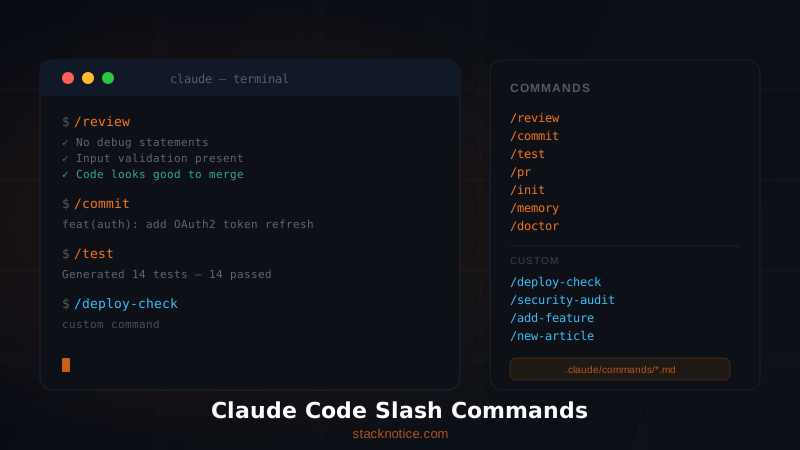
/help — Lists all available commands, including your custom ones.
/clear — Clears the current conversation context. Use this when you've been working on one task and want Claude to stop carrying assumptions from earlier in the session. It does not reset your CLAUDE.md memory.
/memory — Opens your CLAUDE.md file for direct editing. Faster than navigating to it manually, especially when you want to add a new project constraint mid-session.
/cost — Shows token usage for the current session. Run this before long agentic tasks to establish a baseline, and after to understand what complex operations actually cost.
/doctor — Diagnoses your Claude Code environment: API key status, model availability, MCP server connections, hooks configuration. First thing to run when something feels off.
Code Actions
/init — Scans your project and generates an initial CLAUDE.md. If you're onboarding Claude Code into an existing codebase, run this first. It picks up package.json, tsconfig, existing scripts, and folder structure automatically.
# Run once when setting up a new project
/init
The generated file won't be perfect — edit it immediately to add project-specific rules. But it's a far better starting point than a blank file.
/review — Performs a full code review of your staged changes. Claude reads the diff, checks for bugs, style issues, security problems, and surfaces anything worth discussing before you commit.
# Stage your changes first
git add src/components/PaymentForm.tsx

# Then run a review
/review
Claude will comment on the logic, flag potential edge cases, and suggest improvements. This is not a lint check — it understands intent.
/commit — Reads your staged changes and writes a conventional commit message following your project's format. If you have commit conventions in CLAUDE.md, it respects them.
git add .
/commit
# Claude generates: feat(auth): add OAuth2 token refresh with 15-min expiry
If you don't like the message, just ask Claude to adjust it. It won't auto-commit — you always confirm.
/pr (or /pr-description) — Generates a full pull request description from your branch diff against main. Includes summary, test plan, and breaking changes if any. Saves 5-10 minutes per PR.
# On your feature branch
/pr
# Output: title, summary bullets, test plan checklist, screenshots prompt
/bug — Structured bug report mode. Claude asks you to describe the unexpected behavior and then formats a proper bug report with steps to reproduce, expected vs actual behavior, and environment details. Useful when filing issues upstream.
Testing
/test — Generates a test suite for the file or function currently in context. Works best when you give Claude some context first:
# Add context about what you're testing
"I want unit tests for the calculateDiscount function in lib/pricing.ts"
/test
For React components, it generates testing-library tests by default. For utilities, it generates plain Jest/Vitest tests. For APIs, it generates supertest-style integration tests.
Vim Mode
/vim — Toggles vim keybindings in the Claude Code prompt. If you live in vim, this makes the input feel natural. Press Esc to enter normal mode, i to insert.
Custom Slash Commands
This is where Claude Code becomes genuinely powerful. You can define commands that embed your project's patterns, conventions, and workflows.
How to Create a Custom Command
Create a markdown file in .claude/commands/:
your-project/
└── .claude/
    └── commands/
        ├── deploy-check.md
        ├── security-audit.md
        └── add-feature.md
The filename becomes the slash command. deploy-check.md → /deploy-check.
Each file is a prompt template. Claude reads it and executes it as if you'd typed the instructions manually.
Example 1: Pre-Deploy Checklist
# .claude/commands/deploy-check.md

Review the current staged changes and verify:

1. No console.log or debug statements left in production code
2. All new environment variables are documented in .env.example
3. Any new API endpoints have input validation
4. No hardcoded API keys, secrets, or URLs
5. TypeScript strict mode — no `any` types added
6. All new components have proper error boundaries

List any issues found. If none, confirm the code is deploy-ready.
Now /deploy-check runs this full audit on every deploy. Takes 10 seconds instead of 10 minutes of manual checking.
Example 2: Security Audit
# .claude/commands/security-audit.md

Perform an adversarial security review of the staged changes.

Focus on:
- SQL injection and NoSQL injection
- XSS vulnerabilities (especially in JSX with dangerouslySetInnerHTML)
- CSRF protection on state-changing endpoints
- Authentication bypass paths
- Insecure direct object references (IDOR)
- Sensitive data in logs, errors, or responses
- Dependency vulnerabilities in any newly added packages

Be adversarial. Assume the attacker knows the codebase.
Report severity (Critical / High / Medium / Low) for each finding.
Example 3: Feature Scaffolding
# .claude/commands/add-feature.md

I want to add a new feature to this Next.js app.

Before writing any code:
1. Ask me for the feature name and a one-sentence description
2. Identify which existing patterns in this codebase to follow
3. List the files you'll create or modify
4. Ask for my confirmation before proceeding

When building:
- Follow the App Router conventions already in use
- Use the existing component patterns from /components/ui/
- Add the route to the sitemap if it's a new page
- Write the TypeScript types before the implementation
Example 4: Article Helper (StackNotice-specific)
If you're running a content site, you can build commands that know your content workflow:
# .claude/commands/new-article.md

Help me write a new blog article for StackNotice.

Ask me for:
1. The topic/slug
2. The primary keyword to target
3. The category (claude-code | react | ai-agents | ui-ux | apis | tutorials)

Then:
- Generate the MDX frontmatter following our schema in CLAUDE.md
- Write a 2000+ word article matching our voice: expert, direct, practical
- Include working code examples in every H2 section
- Add a FAQ section at the end for featured snippet opportunities
- Create the file at content/blog/[slug].mdx
Using $ARGUMENTS in Custom Commands
Commands can accept arguments. Use $ARGUMENTS as a placeholder and Claude fills it in at runtime:
# .claude/commands/explain.md

Explain the following in plain English, as if talking to a smart developer
who is new to this specific concept. Use a real-world analogy.
Then show a minimal code example.

Concept to explain: $ARGUMENTS
Usage:
/explain React Server Components
/explain JWT token refresh flow
/explain database connection pooling
This turns a generic explanation prompt into a focused, consistently formatted answer every time.
Sharing Commands Across a Team
Custom commands in .claude/commands/ are just files. Commit them to your repo and the whole team gets the same commands automatically:
git add .claude/commands/
git commit -m "chore: add team slash commands for review and deploy checks"
New developers joining the project get your entire workflow toolkit on git clone. No documentation needed — the commands are self-describing.
Quick Reference
| Command | What it does |
|---|---|
/help | List all commands |
/clear | Reset session context |
/memory | Edit CLAUDE.md |
/cost | Show token usage |
/doctor | Diagnose environment |
/init | Generate initial CLAUDE.md |
/review | Review staged changes |
/commit | Write commit message |
/pr | Generate PR description |
/bug | Structured bug report |
/test | Generate test suite |
/vim | Toggle vim keybindings |
The Workflow That Actually Works
Most teams settle on a three-command loop for every feature:
# 1. Review before commit
/review

# 2. Commit with a proper message
git add -p        # stage selectively
/commit

# 3. Check before pushing
/deploy-check     # your custom command
Add /security-audit before any PR that touches auth, payments, or user data.
The key insight: slash commands aren't shortcuts for laziness — they're consistency tools. A /review command that runs the same 12-point checklist every single time is more reliable than a developer who remembers 9 of them on a good day and 6 on a Friday afternoon.
FAQ
Can I use slash commands in non-interactive mode (headless/CI)?
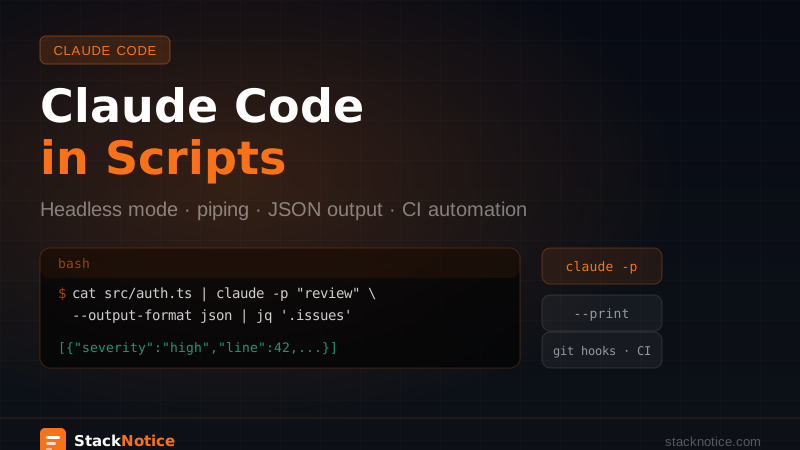
Yes. In --print mode you can pass the command as part of your prompt: claude --print "/review". But for CI, CLAUDE.md hooks are usually a better fit — they run automatically on file writes without needing to invoke commands manually.
Where are global custom commands stored?
Project-level commands go in .claude/commands/. Global commands (available across all projects) go in ~/.claude/commands/. Use global commands for things like /explain or /translate that apply everywhere.
Can a command reference other files?
Yes. Claude reads the command file and has full access to the project context. You can reference specific files in your command: "Review the patterns in components/ui/Button.tsx and apply them to the component I'm about to describe."
Do commands work with MCP servers?
Yes. If you have MCP servers configured (database, browser, Jira, etc.), your slash commands can invoke those tools. A /create-ticket command could read the current bug description and automatically file a Jira issue.
How many custom commands can I have? No hard limit. But keep them focused — one command, one job. Commands that try to do too much end up doing nothing well.
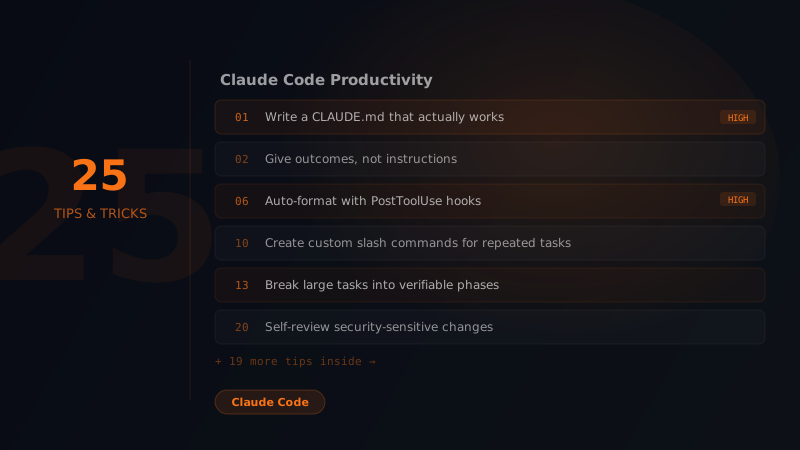
The real power of slash commands is the combination: built-ins handle the universal tasks (review, commit, test), custom commands encode your team's specific knowledge and standards. Set them up once, and the entire team works with the same quality bar — automatically. Pair them with Claude Code productivity tips to get the most out of every session.
Next step: read our guide on Claude Code Hooks to automate actions that don't even need a manual trigger.