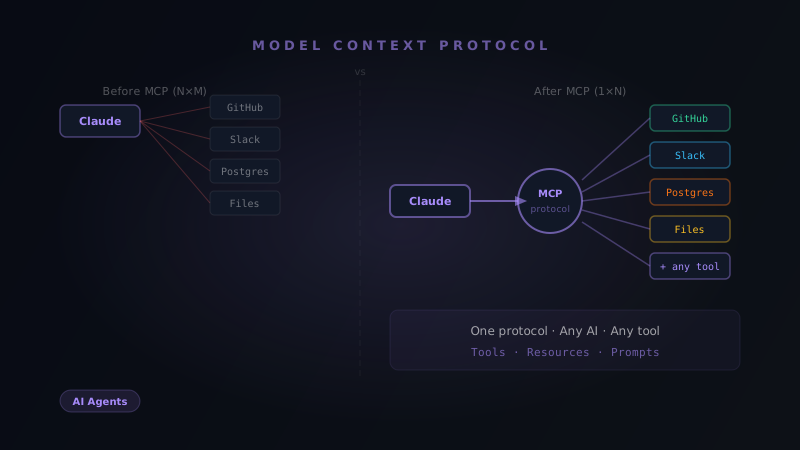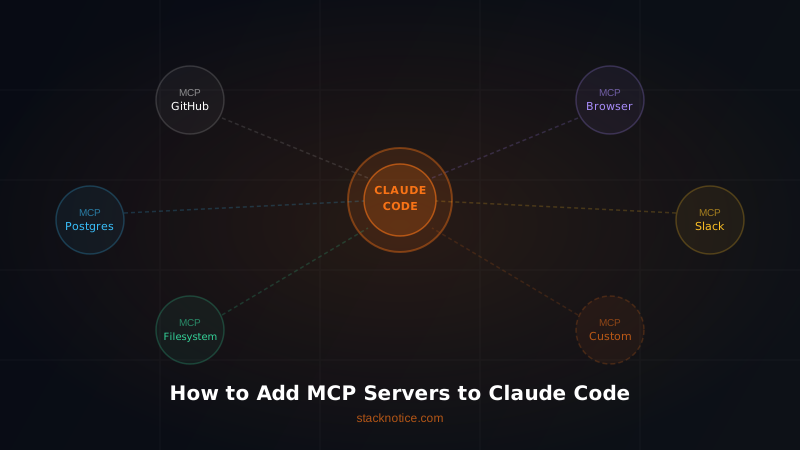
Claude Code without MCP servers is like a senior developer who can only read and write files. Add MCP servers and suddenly that developer can query your database, open pull requests, scrape websites, send Slack messages, and control a browser — all from the same chat interface.
If you're fuzzy on what MCP is at the protocol level, read the complete MCP guide first. This article is about the practical side: where the config lives, how to wire up servers, and which ones are actually worth running.
How MCP Servers Work in Claude Code
Claude Code communicates with MCP servers over a local transport layer — by default, stdio (standard input/output). Each server is a separate process that Claude spawns on demand. When you ask Claude to "create a GitHub issue," it calls the GitHub MCP server, which handles the API call and returns structured results. Claude never sees your GitHub token directly; the server does.
Config file location
Claude Code reads MCP configuration from one of two places depending on scope:
Project-level (checked into your repo, shared with your team):
your-project/.claude/settings.json
User-level (applies to all projects on your machine):
~/.claude/settings.json          # macOS / Linux
%APPDATA%\Claude\settings.json   # Windows
For Claude Desktop (the GUI app), the config lives at:
~/Library/Application Support/Claude/claude_desktop_config.json   # macOS
%APPDATA%\Claude\claude_desktop_config.json                        # Windows
This article focuses on Claude Code (the CLI). The structure is identical; only the file path differs.
The JSON structure
MCP servers are declared under the mcpServers key. Each entry is a named server with a command, args, and optional env:
{
  "mcpServers": {
    "server-name": {
      "command": "npx",
      "args": ["-y", "@some-org/mcp-server-name"],
      "env": {
        "API_KEY": "your-key-here"
      }
    }
  }
}
Key points:
commandis the executable Claude will run to start the server processargsare passed directly to that executableenvinjects environment variables into the server process only — they don't leak into your shell- Server names are arbitrary strings; they just need to be unique within the config
Claude Code also supports SSE (Server-Sent Events) transport for remote servers:
{
  "mcpServers": {
    "remote-server": {
      "type": "sse",
      "url": "https://your-mcp-server.example.com/sse",
      "headers": {
        "Authorization": "Bearer your-token"
      }
    }
  }
}
SSE is useful for shared team servers or hosted MCP services. For local development, stdio is simpler and faster.
Installing Your First MCP Server
The filesystem MCP server is the canonical starting point. It gives Claude read/write access to specific directories on your machine — scoped, explicit, and safe.
Step 1: Locate or create your config file
# Create the project-level config directory if it doesn't exist
mkdir -p .claude

# Create the settings file
touch .claude/settings.json
If settings.json already exists, open it. If it's empty, initialize it with {}.
Step 2: Add the filesystem server
{
  "mcpServers": {
    "filesystem": {
      "command": "npx",
      "args": [
        "-y",
        "@modelcontextprotocol/server-filesystem",
        "/Users/you/projects/my-app",
        "/Users/you/documents"
      ]
    }
  }
}
The paths after the package name are the directories the server is allowed to access. You can pass as many as you need. Claude cannot read or write outside these paths.
Step 3: Restart Claude Code
MCP servers are loaded at startup. After editing the config, quit and reopen the Claude Code session:
# Exit the current session
# Then start a new one
claude
Step 4: Verify the server is active
Ask Claude directly:
What MCP tools do you currently have available?
Claude will list all connected servers and the tools each one exposes. For the filesystem server, you should see tools like read_file, write_file, list_directory, create_directory, and move_file.
Step 5: Use it
Read the file src/app/layout.tsx and tell me if there are any accessibility issues
Claude will call read_file on that path, get the content, and analyze it — without you having to paste anything.
The Most Useful MCP Servers in 2026
These are the servers that earn their place in a real development workflow. Not toys — tools that actually reduce context-switching.
| Server | What it does | Install command |
|---|---|---|
@modelcontextprotocol/server-filesystem | Read/write local files and directories (scoped) | npx -y @modelcontextprotocol/server-filesystem /path/to/dir |
@modelcontextprotocol/server-github | Create issues, PRs, comment on code, search repos | npx -y @modelcontextprotocol/server-github |
@modelcontextprotocol/server-postgres | Run SQL queries against a PostgreSQL database | npx -y @modelcontextprotocol/server-postgres postgresql://user:pass@localhost/db |
@modelcontextprotocol/server-puppeteer | Control a real Chromium browser — navigate, click, screenshot, scrape | npx -y @modelcontextprotocol/server-puppeteer |
@modelcontextprotocol/server-slack | Post messages, read channels, search Slack workspace | npx -y @modelcontextprotocol/server-slack |
@modelcontextprotocol/server-fetch | Fetch any URL and return clean text/markdown — great for reading docs | npx -y @modelcontextprotocol/server-fetch |
Full config example with multiple servers
{
  "mcpServers": {
    "filesystem": {
      "command": "npx",
      "args": [
        "-y",
        "@modelcontextprotocol/server-filesystem",
        "/Users/you/projects/my-app"
      ]
    },
    "github": {
      "command": "npx",
      "args": ["-y", "@modelcontextprotocol/server-github"],
      "env": {
        "GITHUB_PERSONAL_ACCESS_TOKEN": "ghp_your_token_here"
      }
    },
    "postgres": {
      "command": "npx",
      "args": [
        "-y",
        "@modelcontextprotocol/server-postgres",
        "postgresql://localhost/mydb"
      ]
    },
    "fetch": {
      "command": "npx",
      "args": ["-y", "@modelcontextprotocol/server-fetch"]
    },
    "puppeteer": {
      "command": "npx",
      "args": ["-y", "@modelcontextprotocol/server-puppeteer"]
    }
  }
}
What each server is actually good for
filesystem — The daily driver. Use it so Claude can read your codebase without you pasting files. Scope it tightly to your project directory, not your entire home folder.
github — Game-changing for code review workflows. "Summarize all open PRs and flag any that touch the auth layer" is a real command you can now run. Requires a personal access token with repo scope.
postgres — Let Claude query your dev database directly. "Find all users who signed up in the last 30 days but never completed onboarding" returns in seconds. Use a read-only connection string in production contexts.
puppeteer — The most powerful and the most dangerous. Claude can open a browser, fill forms, take screenshots, and scrape anything. Excellent for testing and research; never point it at authenticated sessions you care about.
slack — Useful if you're building Slack integrations or want Claude to pull context from team conversations. Requires a Slack bot token with appropriate scopes.
fetch — Simple but underrated. "Read the Next.js 15 migration docs at this URL and tell me what I need to change in my project" is now possible without copy-pasting.
Building a Custom MCP Server
The official servers cover common cases, but your most valuable tools are usually internal: your company's API, a proprietary database, a custom CLI. Building a server takes about 30 minutes.
Setup
mkdir my-mcp-server && cd my-mcp-server
npm init -y
npm install @modelcontextprotocol/sdk zod
npm install -D typescript @types/node tsx
Create tsconfig.json:
{
  "compilerOptions": {
    "target": "ES2022",
    "module": "Node16",
    "moduleResolution": "Node16",
    "outDir": "./dist",
    "strict": true,
    "esModuleInterop": true
  },
  "include": ["src/**/*"]
}
Minimal working server
Create src/index.ts:
import { Server } from "@modelcontextprotocol/sdk/server/index.js";
import { StdioServerTransport } from "@modelcontextprotocol/sdk/server/stdio.js";
import {
  CallToolRequestSchema,
  ListToolsRequestSchema,
} from "@modelcontextprotocol/sdk/types.js";
import { z } from "zod";

// Define your tool's input schema
const GetDeploymentStatusSchema = z.object({
  environment: z.enum(["staging", "production"]).describe("The target environment"),
  service: z.string().describe("The service name to check"),
});

// Create the server instance
const server = new Server(
  {
    name: "my-internal-tools",
    version: "1.0.0",
  },
  {
    capabilities: {
      tools: {},
    },
  }
);

// Register the tools list handler
server.setRequestHandler(ListToolsRequestSchema, async () => {
  return {
    tools: [
      {
        name: "get_deployment_status",
        description:
          "Check the deployment status of a service in staging or production",
        inputSchema: {
          type: "object",
          properties: {
            environment: {
              type: "string",
              enum: ["staging", "production"],
              description: "The target environment",
            },
            service: {
              type: "string",
              description: "The service name to check",
            },
          },
          required: ["environment", "service"],
        },
      },
    ],
  };
});

// Register the tool call handler
server.setRequestHandler(CallToolRequestSchema, async (request) => {
  if (request.params.name === "get_deployment_status") {
    const args = GetDeploymentStatusSchema.parse(request.params.arguments);

    // Replace this with your actual API call
    const status = await fetchDeploymentStatus(args.environment, args.service);

    return {
      content: [
        {
          type: "text",
          text: JSON.stringify(status, null, 2),
        },
      ],
    };
  }

  throw new Error(`Unknown tool: ${request.params.name}`);
});

// Stub — replace with your real implementation
async function fetchDeploymentStatus(environment: string, service: string) {
  return {
    environment,
    service,
    status: "healthy",
    version: "1.4.2",
    lastDeployedAt: new Date().toISOString(),
    instanceCount: 3,
  };
}

// Start the server
async function main() {
  const transport = new StdioServerTransport();
  await server.connect(transport);
  console.error("MCP server running on stdio");
}

main().catch(console.error);
Add build script to package.json
{
  "scripts": {
    "build": "tsc",
    "dev": "tsx src/index.ts"
  }
}
Build and wire it up
npm run buildThen add it to your Claude Code config:
{
  "mcpServers": {
    "internal-tools": {
      "command": "node",
      "args": ["/absolute/path/to/my-mcp-server/dist/index.js"]
    }
  }
}
Use an absolute path. Claude Code spawns the server process from varying working directories, and relative paths break unpredictably.
Adding resources and prompts
Beyond tools, MCP servers can expose resources (static or dynamic content Claude can read) and prompts (reusable prompt templates). For a first server, focus on tools — they cover 90% of use cases. Resources become valuable when you have large reference data (API schemas, internal documentation) you want Claude to pull on demand rather than keeping in context permanently.
MCP Server Best Practices
Scope filesystem access tightly
{
  "mcpServers": {
    "filesystem": {
      "command": "npx",
      "args": [
        "-y",
        "@modelcontextprotocol/server-filesystem",
        "/Users/you/projects/current-project"
      ]
    }
  }
}
Never do this:
"args": ["-y", "@modelcontextprotocol/server-filesystem", "/Users/you"]The more directories you expose, the larger the blast radius if Claude does something unexpected. Keep it to the project you're actively working on.
Use read-only database connections in production contexts
{
  "mcpServers": {
    "postgres": {
      "command": "npx",
      "args": [
        "-y",
        "@modelcontextprotocol/server-postgres",
        "postgresql://readonly_user:pass@prod-db.internal/myapp"
      ]
    }
  }
}
Create a dedicated read-only PostgreSQL user for MCP. SELECT access only. Claude does not need INSERT, UPDATE, or DELETE for most analysis tasks, and limiting permissions prevents accidents.
Keep secrets out of the config file
If your config is project-level and committed to git, never hardcode tokens in it. Reference environment variables instead:
{
  "mcpServers": {
    "github": {
      "command": "npx",
      "args": ["-y", "@modelcontextprotocol/server-github"],
      "env": {
        "GITHUB_PERSONAL_ACCESS_TOKEN": "${GITHUB_TOKEN}"
      }
    }
  }
}
Variable interpolation support varies by Claude Code version. Alternatively, use user-level config (~/.claude/settings.json) for any server that requires credentials, and keep only credential-free servers in the project-level file.
Start with few servers, add deliberately
Every active MCP server is a tool Claude considers for every response. Ten irrelevant servers add noise to Claude's tool selection and can slow responses. Start with filesystem and fetch. Add servers when you have a specific workflow that needs them.
Which servers to avoid (or use carefully)
- Puppeteer on authenticated sessions: Never point the browser server at accounts you're logged into with real credentials during automated tasks. Use a separate browser profile.
- Unrestricted filesystem on a shared machine: If multiple people use the same machine, project-scoped configs are essential — never use a broad user-level filesystem config.
- Third-party servers from unknown sources: The MCP ecosystem is growing fast, and not every published package is trustworthy. Prefer the official
@modelcontextprotocol/*packages and well-audited community servers. Read the source before running anything that touches credentials or sensitive paths. - Database servers with write access against production: Self-explanatory, but worth stating explicitly. Always use read-only credentials when connecting to any database that contains real user data.
Separate configs per project
The project-level .claude/settings.json pattern exists for a reason. A Next.js frontend project doesn't need a Postgres server. A data pipeline project doesn't need Puppeteer. Tailored configs keep Claude focused and reduce the chance of it reaching for the wrong tool.
FAQ
Do MCP servers run all the time, or only when Claude uses them?
Claude Code spawns MCP server processes on startup of a session and keeps them running for the duration of that session. They are not running when Claude Code is closed. Each server is a lightweight process that idles until Claude calls one of its tools.
Can I use MCP servers with Claude.ai (the web app)?
No — as of 2026, MCP server support is specific to Claude Code (the CLI) and Claude Desktop. The web app at claude.ai does not support MCP. This is expected to change as the ecosystem matures.
My MCP server connects but Claude says it has no tools — what's wrong?
This usually means the server process started but failed during initialization. Check two things: (1) run the server command manually in your terminal to see error output, since stdio suppresses errors in Claude Code; (2) verify the package name is correct — a typo will cause npx to silently install a nonexistent package.
How do I know which MCP server tools Claude actually called?
Claude Code shows tool calls in its output stream. Look for lines prefixed with a tool-use indicator between Claude's text responses. You can also ask Claude explicitly: "What tool calls did you make in that last response?"
Can I limit which tools within a server Claude can use?
Not at the config level currently. MCP servers expose their full tool list and Claude decides which to call. The practical alternative is to build narrow, purpose-specific servers rather than broad ones. If you only want Claude to read from Postgres but not run arbitrary queries, build a custom server that exposes only the specific queries you want.
Does using MCP servers cost more tokens?
Yes, marginally. Each MCP tool call adds a tool-use block and tool-result block to the context. For frequent tool calls in long sessions, this adds up. It's rarely a practical concern for normal development workflows — the productivity gain far outweighs the token overhead.
Conclusion
MCP servers are the single most practical upgrade you can make to a Claude Code workflow. The filesystem server alone eliminates most of the manual file-pasting that slows down development sessions. Add GitHub and Postgres and you have a genuinely autonomous development assistant that can operate across your entire stack. To take this further, learn how to build your first AI agent with Claude and combine MCP tools with agentic loops.
The key insight is that you don't need to configure everything at once. Start with one server, build the habit of using it, then add more as you identify specific friction points in your workflow. The configuration is trivially reversible — comment out a server and it disappears.
For more ways to get maximum productivity out of Claude Code once your MCP setup is dialed in, see 25 Claude Code Tips to 10x Your Productivity. The two compound well together.