Claude Code has evolved significantly since it launched. What started as a CLI that could read files and run commands is now a full agentic coding environment — with Plan Mode, parallel worktrees, custom commands, thinking modes, and a memory system that persists across sessions.
If you set it up properly once, it changes how you work permanently. This guide covers the complete setup, the features most developers never discover, and the workflows that make the productivity gains real.
What Claude Code Actually Is
Claude Code is a terminal-native agentic coding tool. It's not a chat interface with code highlighting. It's an agent that:
- Reads and modifies files across your entire codebase
- Runs terminal commands — tests, builds, installs, scripts
- Searches code with grep, understands structure
- Creates and deletes files, refactors across multiple files simultaneously
- Verifies its own work by running tests and reading output
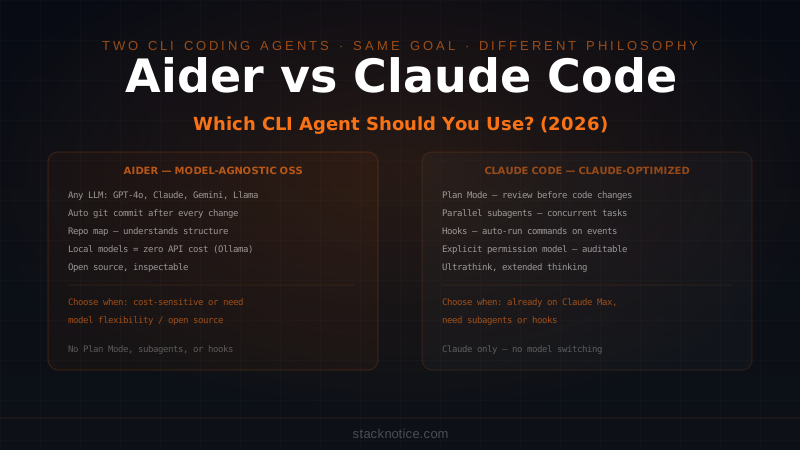
The key distinction from IDE plugins like Copilot or Cursor: Claude Code has access to your full environment. It can run npm test and see the failure output, read the failing test, trace it to the source, fix it, and re-run — all without you touching a keyboard.
Installation
Requires Node.js 18 or later:
npm install -g @anthropic-ai/claude-codeAuthenticate — on first run it opens a browser for OAuth login with your Anthropic account:
claudeYou need an Anthropic subscription or API key. The easiest path is a Claude Pro or Claude Max plan, which gives you Claude Code usage included. For API key auth:
export ANTHROPIC_API_KEY=sk-ant-...
claude
Your First Session
Navigate to any project and launch:
cd my-project
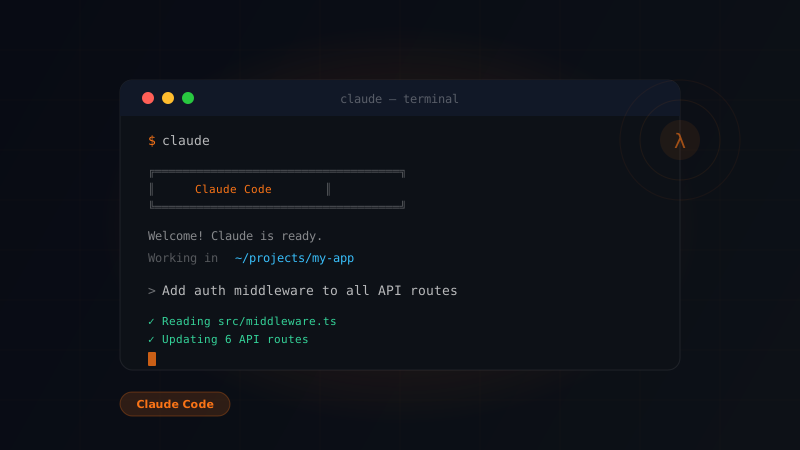
claude
Start with a codebase overview — Claude reads your project structure before responding:
> Give me a high-level overview of this codebase
It reads your files, understands the architecture, and explains what the project does, how the main modules connect, and where complexity lives. In a new codebase this alone saves hours.
CLAUDE.md — The Most Important Feature
CLAUDE.md in your project root is read at the start of every session. It's how you give Claude persistent context about your project without re-explaining conventions every time.
A good CLAUDE.md:
# Project Name

## Stack
- Next.js 15 App Router, TypeScript strict
- Drizzle ORM + Neon PostgreSQL
- Better Auth for authentication
- Tailwind CSS + shadcn/ui

## Conventions
- All server data fetching happens in Server Components
- Client Components get 'use client' directive, live in components/
- Drizzle queries use the relational API (db.query.table.findMany)
- No Prisma — use Drizzle only
- Zod for all validation, never manual checks
- Commit format: feat/fix/chore(scope): description

## Important
- Never modify lib/auth.ts without running the full test suite
- The payments module (lib/stripe.ts) is business-critical — test everything
- Run `npm run typecheck` before pushing
Claude reads this before every prompt. It stops wasting tokens re-exploring conventions it already knew. And it prevents the frustrating pattern of Claude reaching for the wrong library because it didn't know your preferences.
Commit your CLAUDE.md to the repo. Every developer on the team gets the same AI behavior — same conventions, same constraints, same patterns. It's the best documentation you'll write because the AI enforces it automatically. Full guide: CLAUDE.md ultimate guide
Plan Mode — For Complex Features
Press Shift+Tab before submitting a prompt to enter Plan Mode. Claude thinks through the full implementation before touching any files, shows you the plan, and waits for your approval.
Use Plan Mode when:
- The feature touches multiple files or systems
- You want to review the approach before any changes
- The task is ambiguous and you want to align on direction first
[Plan Mode enabled]

> Add a notification system that sends emails when a subscription renewal fails.
  Use Resend. Notifications should show in the dashboard and be dismissible.
Claude responds with a structured plan:
- Files to create
- Files to modify
- Database schema changes
- API endpoints needed
- Email template structure
You review, adjust, approve. Then Claude executes. This is the difference between a 10-minute feature and a 45-minute refactor.
Thinking Modes
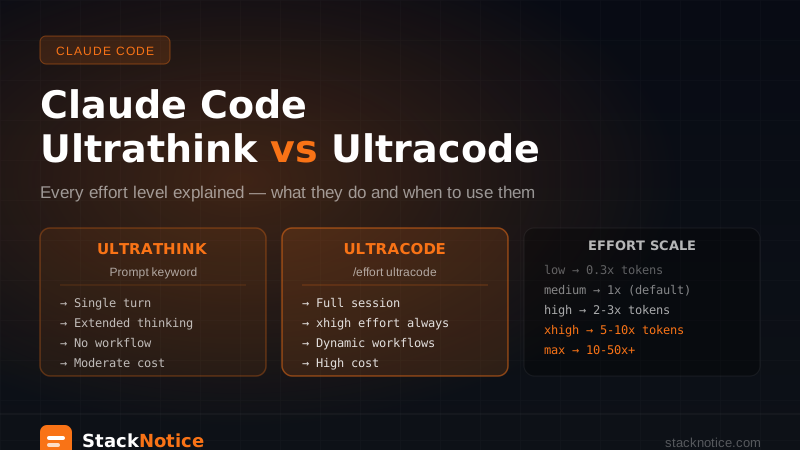
Claude Code supports extended thinking for hard problems. Type think before a task to activate it, or use intensifiers:
> think about the best architecture for real-time notifications in this app
> think hard about the performance implications of this database query
> ultrathink about this race condition in the payment flow
ultrathink triggers the deepest reasoning — Claude works through the problem systematically before proposing a solution. For architecture decisions, security review, or debugging complex race conditions, this produces materially better output. For simple tasks it's overkill.
Full guide: Claude Code thinking modes
Slash Commands
The most useful built-in commands:
| Command | What it does |
|---|---|
/clear | Clear conversation context and start fresh |
/compact | Compress context history to save tokens |
/cost | Show token usage for the current session |
/review | Ask Claude to review its own recent changes |
/exit | Exit Claude Code |
The pattern for long sessions: when context gets long, run /compact instead of /clear. Compact summarizes the history and keeps working context alive.
Custom commands let you define your own — /deploy, /test-suite, /security-audit. These live in .claude/commands/. Full guide: Claude Code custom commands
Model Selection
Claude Code defaults to Claude Sonnet 4.6 for most tasks — it's fast and good. For complex architectural work, use Opus:
claude --model claude-opus-4-6Or switch mid-session:
> /model claude-opus-4-6
The practical rule: Sonnet for features, bug fixes, tests, refactoring. Opus for architecture decisions, security reviews, complex debugging, and anything where the stakes justify spending more tokens. Comparison: Claude Sonnet vs Opus for coding
Parallel Work with Worktrees
For large features that would benefit from running multiple independent workstreams simultaneously, Claude Code integrates with git worktrees. Each worktree is a separate checkout of your repo — no branch switching, no stashing:
# Create worktrees for parallel tasks
git worktree add ../project-feature-a feature/payments
git worktree add ../project-feature-b feature/notifications

# Open separate Claude Code sessions in each
cd ../project-feature-a && claude  # Terminal 1
cd ../project-feature-b && claude  # Terminal 2
Two Claude Code sessions working in parallel, no conflicts. One builds payments, one builds the notifications system. When both are done, merge. Full guide: Claude Code worktrees
Real Workflows
Understanding a New Codebase
Join a project or get handed legacy code:
> Read the main entry point, auth module, and database schema.
  Give me a summary of the architecture, data flow, and the 3 most
  complex areas I should understand first.
Then go deeper on whatever matters:
> How does subscription billing work end-to-end in this app?
  Trace a payment from the user clicking "Upgrade" to the database update.
This replaces 2-3 hours of archaeology with 10 minutes of Q&A.
Feature Development
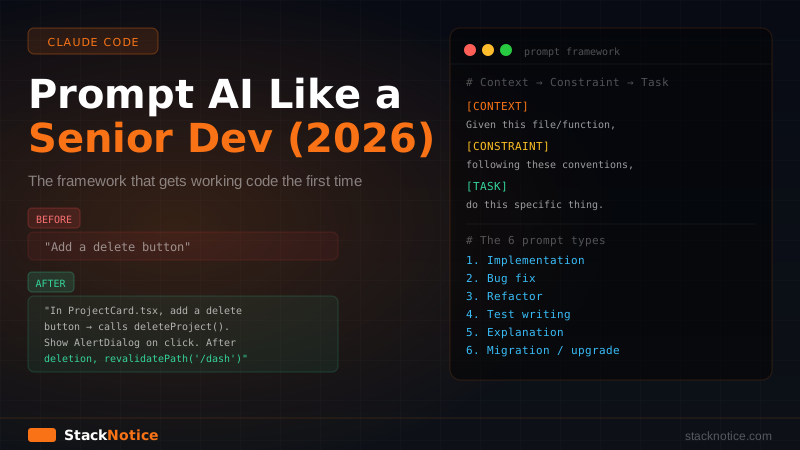
Be specific. Give Claude a complete picture:
> Add a bulk delete feature to the TaskList component.

  Requirements:
  - Checkbox on each TaskCard (see TaskCard.tsx for structure)
  - "Delete selected (N)" button appears when any are checked
  - DELETE /api/tasks/bulk with body { ids: string[] }
  - Optimistic removal with rollback on error — match the
    optimistic pattern in hooks/useTasks.ts
  - Clear selection after successful delete
  - Keyboard: Escape clears selection

  Look at TaskCard.tsx and hooks/useTasks.ts before starting.
Claude reads the referenced files, implements the feature, and writes tests. Imprecise prompts produce imprecise output. This level of specificity produces production-ready code.
Bug Fixing
> My tests are failing with this error:
  [paste the full error output]

  The test is in __tests__/auth.test.ts line 47.
  Find the root cause — don't guess, read the relevant files first.
  Then fix it and verify the fix by running the tests.
Claude reads the test, traces the call chain, finds the bug, fixes it, and runs npm test to confirm. The "don't guess, read the relevant files first" instruction is important — it prevents Claude from applying pattern-matched fixes without understanding the actual code.
Code Review
> Review the last 3 commits. Look for:
  - Security vulnerabilities (SQL injection, exposed credentials, unvalidated input)
  - Performance issues (N+1 queries, missing indexes, unnecessary re-renders)
  - Code that doesn't follow our conventions in CLAUDE.md
  - Missing error handling

  Be specific about file and line numbers.
Refactoring
> Convert all class components in src/components/ to functional components
  with hooks. Keep the same props interface and behavior. Run tests after
  each component to verify nothing broke.
Claude processes them one at a time, running tests between each to catch regressions early.
The Permission System
Claude Code asks before running commands that could have side effects:
Claude wants to run: npm test
Allow? (y/n/always/skip)
y— allow oncealways— trust this command type for the sessionn— deny
For projects you fully trust, --dangerously-skip-permissions bypasses all prompts. Use this in CI pipelines or personal projects where you've already reviewed the CLAUDE.md constraints. Never in a production environment.
You can also pre-configure trusted commands in .claude/settings.json. Full guide: skip permissions safely
Cost Management
Claude Code uses the Anthropic API — each session costs tokens. The practical levers:
/compact regularly — compresses history when context grows long. Reduces cost for long sessions by 50-70%.
CLAUDE.md prevents re-exploration — Claude reads project context once from the file instead of re-reading your codebase every session.
Scope your prompts — "add rate limiting to the API" costs more than "add rate limiting to app/api/user/route.ts using @upstash/ratelimit". Scoped prompts need less exploration.
Model choice — Sonnet is ~5x cheaper than Opus. Use Opus only when you need it.
Detailed guide: Claude Code cost optimization
Common Mistakes
Vague instructions. "Fix the bug" is hard. "The createSession function in lib/auth.ts throws a TypeError when user is null on line 34. Add a null check that redirects to /sign-in." is actionable.
No CLAUDE.md. Without it, Claude rediscovers your conventions every session. Five minutes writing a good CLAUDE.md saves hours over weeks.
Skipping the review. Claude makes changes at a pace that feels automated. Read every file it modifies before running. A 3-minute review prevents hours of debugging.
Not committing before large operations. Always git commit before asking Claude to refactor a module or rewrite a feature. git reset --hard is your undo button.
Context too long without compacting. Long sessions with no /compact get expensive and quality degrades as context overflows. Compact at natural stopping points.
For the next step after setup, 25 Claude Code tips and tricks covers the patterns that experienced users have figured out. For team usage — sharing CLAUDE.md conventions, managing costs, permission policies — see Claude Code for teams.