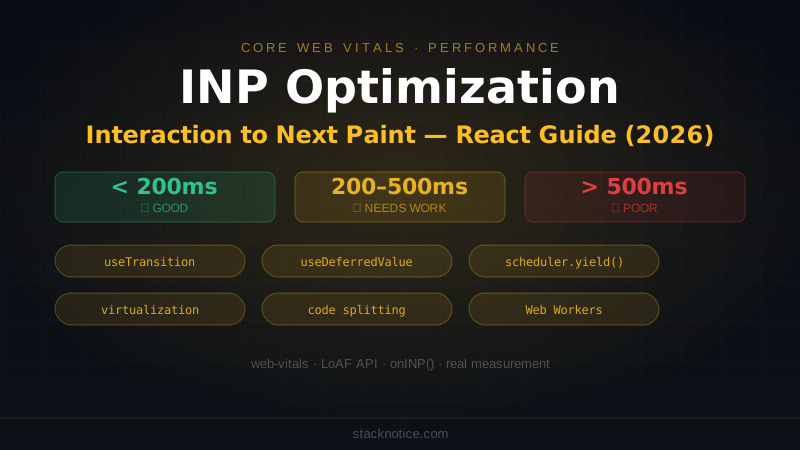
In March 2024, Google replaced FID (First Input Delay) with INP (Interaction to Next Paint) as a Core Web Vital. INP is harder to pass than FID — it measures all interactions throughout the page's life, not just the first one — and React apps have specific patterns that tank it.
This guide covers what INP actually measures, how to find the interactions failing it, and the concrete fixes for React.
What INP Measures (and Why It's Harder Than FID)
FID measured only the delay before the browser could start processing the first user interaction. It ignored how long the processing actually took.
INP measures the full visual response time for interactions: from when the user clicks, taps, or presses a key to when the browser has painted the next frame. It tracks all interactions throughout the session and reports the worst one (with a small outlier exclusion).
Thresholds:
- Good: under 200ms
- Needs improvement: 200–500ms
- Poor: over 500ms
A button click that triggers a 300ms React re-render fails INP. A form field that runs 400ms of validation on each keystroke fails INP. These are common React patterns that FID would have passed because FID only measured input delay — not the time for the actual work.
What Causes High INP in React Apps
Long event handlers
The main thread can only paint after a task finishes. If a click handler does 300ms of synchronous work — state updates, calculations, DOM mutations — the user sees nothing change for 300ms.
// ❌ 300ms of sync work before the browser can paint
function handleFilterChange(value: string) {
  setFilter(value)
  const filtered = heavyFilter(allProducts, value) // 200ms
  setFilteredProducts(filtered)
  updateAnalytics(value) // 80ms
}
Large React re-renders
Updating state in response to an interaction triggers a re-render. If the component tree is large or components are expensive, that re-render blocks the main thread.
// ❌ Input change re-renders the whole ProductGrid — 250ms on large lists
function SearchPage() {
  const [query, setQuery] = useState('')
  const results = products.filter(p => p.name.includes(query)) // unoptimized

  return (
    <>
      <input onChange={(e) => setQuery(e.target.value)} />
      <ProductGrid items={results} /> {/* 500 items, expensive */}
    </>
  )
}
Hydration blocking
During hydration, React replays event listeners and reconciles the virtual DOM with the server-rendered HTML. On heavy pages, this can take 200–500ms, blocking all interactions until it completes. Any interaction during this window fails INP.
Third-party scripts
Analytics, chat widgets, and ad scripts run on the main thread. A third-party script that takes 100ms doesn't show up in your React profiler, but it contributes to INP.
Measuring INP
web-vitals library
npm install web-vitals// lib/vitals.ts
import { onINP, onLCP, onCLS } from 'web-vitals'
export function reportWebVitals() {
onINP((metric) => {
console.log('INP:', metric.value, 'ms', metric.rating)
// Send to your analytics
// metric.attribution has the element and event type that caused it
analytics.track('web_vital', {
name: metric.name,
value: metric.value,
rating: metric.rating,
element: metric.attribution?.interactionTarget,
event_type: metric.attribution?.interactionType,
})
})
}The attribution object tells you which element and what interaction type caused the bad INP — essential for debugging.
// In Next.js app layout
'use client'
import { useEffect } from 'react'
import { reportWebVitals } from '@/lib/vitals'

export function VitalsProvider({ children }: { children: React.ReactNode }) {
  useEffect(() => {
    reportWebVitals()
  }, [])
  return <>{children}</>
}
Chrome DevTools
- Open Performance panel → record while interacting
- Look for Long Tasks (red blocks over 50ms)
- In the Interactions track, find interactions with long presentation delays
The INP badge in DevTools (Chrome 117+) shows INP for the current session in real time.
LoAF (Long Animation Frame) API
The Long Animation Frame API is newer than Long Tasks and gives more detail:
const observer = new PerformanceObserver((list) => {
  for (const entry of list.getEntries()) {
    if (entry.duration > 50) {
      console.log('Long frame:', entry.duration, 'ms')
      console.log('Scripts:', entry.scripts.map(s => ({
        name: s.sourceURL,
        duration: s.duration,
      })))
    }
  }
})

observer.observe({ type: 'long-animation-frame', buffered: true })
LoAF tells you which script caused the long frame — useful for attributing blame to third-party code.
Fix 1: useTransition for Non-Urgent Updates
useTransition marks a state update as low-priority. React processes the urgent update (showing the input value) first, paints, then processes the transition update (filtering the list). The user sees the input respond instantly even if the list update takes 300ms.
'use client'

import { useTransition, useState, useMemo } from 'react'

export function SearchPage({ products }: { products: Product[] }) {
  const [query, setQuery] = useState('')
  const [deferredQuery, setDeferredQuery] = useState('')
  const [isPending, startTransition] = useTransition()

  function handleSearch(value: string) {
    setQuery(value) // urgent — show input value immediately
    startTransition(() => {
      setDeferredQuery(value) // deferred — filter after paint
    })
  }

  const filtered = useMemo(
    () => products.filter(p => p.name.toLowerCase().includes(deferredQuery.toLowerCase())),
    [products, deferredQuery]
  )

  return (
    <>
      <input
        value={query}
        onChange={(e) => handleSearch(e.target.value)}
        className={isPending ? 'opacity-70' : ''}
      />
      <ProductGrid items={filtered} />
    </>
  )
}
The input responds in the same frame. The filtered list updates when React gets to it. INP is measured on the input's visual response — which is now a single frame.
Fix 2: useDeferredValue
When the slow work is in a child component rather than in your state update, useDeferredValue gives it a stale value to render with, then updates it after the urgent paint:
import { useDeferredValue, memo } from 'react'

// Wrap the expensive component in memo so it can bail out
const ExpensiveList = memo(function ExpensiveList({ query }: { query: string }) {
  const results = heavyFilter(items, query)
  return <ul>{results.map(item => <li key={item.id}>{item.name}</li>)}</ul>
})

export function SearchPage() {
  const [query, setQuery] = useState('')
  const deferredQuery = useDeferredValue(query) // lags behind query

  return (
    <>
      <input onChange={(e) => setQuery(e.target.value)} />
      {/* Renders with old query until React can update without blocking */}
      <ExpensiveList query={deferredQuery} />
    </>
  )
}
Fix 3: scheduler.yield()
scheduler.yield() is a newer browser API that lets you yield control back to the browser in the middle of a long task, allowing it to paint or process other events:
async function processLargeDataset(items: Item[]) {
  const results = []

  for (let i = 0; i < items.length; i++) {
    results.push(expensiveProcess(items[i]))

    // Yield every 50 items — let the browser paint between chunks
    if (i % 50 === 0) {
      await scheduler.yield()
    }
  }

  return results
}
This is particularly useful for operations that can't be moved to a Web Worker (they need DOM access or React state) but are too heavy to run as a single synchronous task.
Check support before using:
if ('scheduler' in window && 'yield' in window.scheduler) {
  await scheduler.yield()
} else {
  // Fallback: setTimeout(resolve, 0)
  await new Promise(resolve => setTimeout(resolve, 0))
}
Fix 4: Virtualize Long Lists
Rendering 500 list items means 500 DOM nodes. Even a simple list with {items.map(...)} becomes expensive to reconcile. Virtualization renders only the visible items:
npm install @tanstack/react-virtualimport { useVirtualizer } from '@tanstack/react-virtual'
import { useRef } from 'react'
export function VirtualProductList({ products }: { products: Product[] }) {
const parentRef = useRef<HTMLDivElement>(null)
const virtualizer = useVirtualizer({
count: products.length,
getScrollElement: () => parentRef.current,
estimateSize: () => 72, // estimated row height in px
})
return (
<div ref={parentRef} className="h-96 overflow-auto">
<div style={{ height: `${virtualizer.getTotalSize()}px`, position: 'relative' }}>
{virtualizer.getVirtualItems().map((virtualItem) => (
<div
key={virtualItem.key}
style={{
position: 'absolute',
top: `${virtualItem.start}px`,
width: '100%',
height: `${virtualItem.size}px`,
}}
>
<ProductCard product={products[virtualItem.index]} />
</div>
))}
</div>
</div>
)
}500 items → ~10 rendered at a time. Re-render cost drops by 98%.
Fix 5: Code Split Heavy Interactions
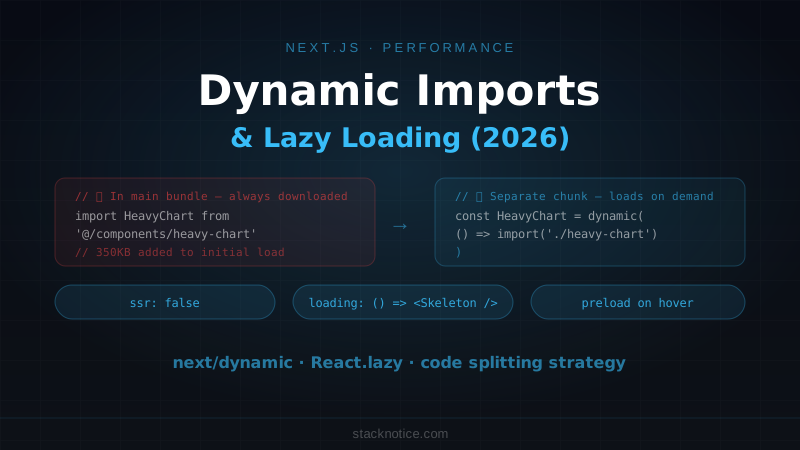
If a click opens a heavy modal or loads a heavy component, load the code only when the user actually clicks:
import dynamic from 'next/dynamic'

const HeavyAnalyticsDashboard = dynamic(
  () => import('@/components/analytics-dashboard'),
  { loading: () => <DashboardSkeleton /> }
)

export function AnalyticsButton() {
  const [open, setOpen] = useState(false)

  return (
    <>
      <button
        // Preload on hover so the chunk is ready by the time they click
        onMouseEnter={() => import('@/components/analytics-dashboard')}
        onClick={() => setOpen(true)}
      >
        View Analytics
      </button>
      {open && <HeavyAnalyticsDashboard />}
    </>
  )
}
The click handler itself is now just setOpen(true) — essentially instant.
Fix 6: Move Work Off the Main Thread
For computationally heavy work that doesn't need React state, move it to a Web Worker:
// workers/filter.worker.ts
self.onmessage = ({ data: { items, query } }) => {
  const results = items.filter(item =>
    item.name.toLowerCase().includes(query.toLowerCase()) &&
    item.category === query.category
  )
  self.postMessage(results)
}

// In your component
const worker = new Worker(new URL('../workers/filter.worker.ts', import.meta.url))

function handleSearch(query: string) {
  worker.postMessage({ items: allItems, query })
  worker.onmessage = ({ data }) => setResults(data)
}
Web Workers run on a separate thread entirely — zero impact on the main thread, zero impact on INP.
Third-Party Scripts: Use next/script
import Script from 'next/script'

// ❌ Regular script tag blocks the main thread
<script src="https://analytics.example.com/script.js" />

// ✅ next/script with strategy="lazyOnload" loads after page is interactive
<Script
  src="https://analytics.example.com/script.js"
  strategy="lazyOnload"
/>

// Or "afterInteractive" — loads after hydration, before lazy
<Script
  src="https://chat-widget.example.com/widget.js"
  strategy="afterInteractive"
/>
lazyOnload scripts don't run until the browser is idle — they can't contribute to INP during the critical interaction window.
INP Checklist
High INP from click/tap:
├─ Is the event handler doing sync work over 50ms?
│   └─ Move non-urgent updates into startTransition()
├─ Is a large React tree re-rendering?
│   ├─ useDeferredValue on the slow child
│   ├─ memo() + stable references
│   └─ Virtualize if it's a long list
├─ Is a heavy component loading on click?
│   └─ next/dynamic with preload on hover
└─ Is it third-party code?
    └─ next/script with lazyOnload or afterInteractive

High INP from input (keypress):
├─ Debounce expensive operations (not state — that kills UX)
├─ useTransition for the filtering/searching update
└─ useDeferredValue if the slow work is in a child

INP good in dev but bad in production:
└─ Profile on real hardware (mobile, throttled CPU)
   DevTools → Performance → CPU 4x slowdown
The main lever in React apps is useTransition — it directly maps the "urgent vs non-urgent" distinction onto the interaction timeline. Most React INP failures are large re-renders triggered by user input that could be deferred. Start there, measure before and after with the web-vitals library, and only reach for Web Workers if the work genuinely can't be made fast enough on the main thread.
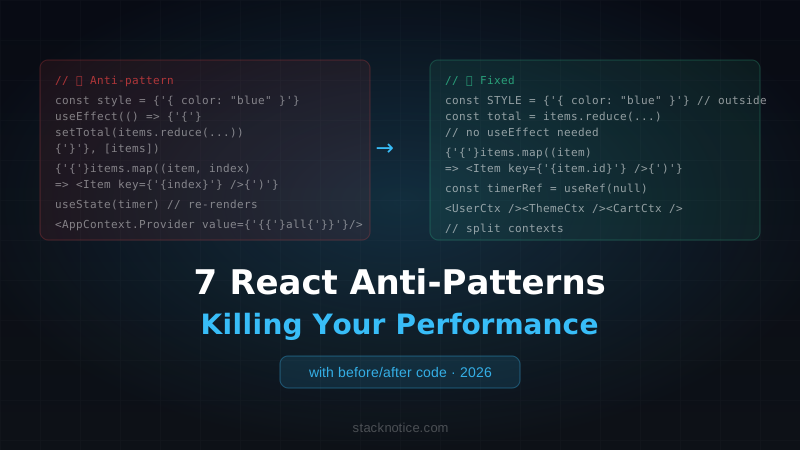
For the broader Next.js performance picture, see the Next.js performance and Lighthouse guide and React anti-patterns that kill performance.