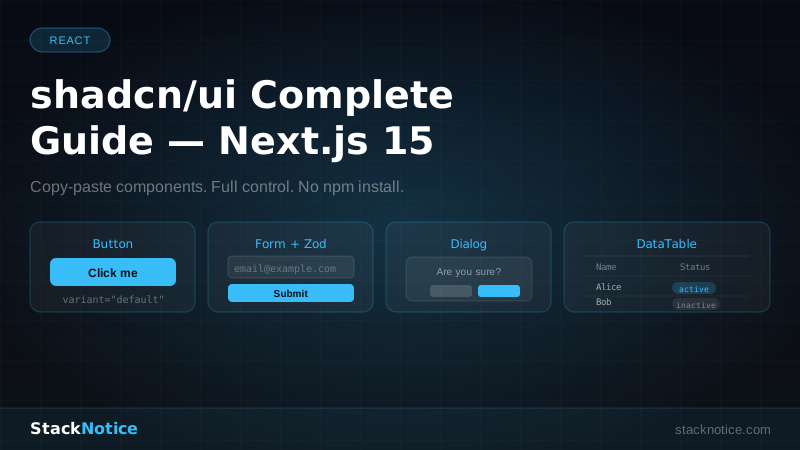
shadcn/ui is the most-used component system in the React ecosystem in 2026 — and it's not even a traditional library. You don't install it as an npm dependency and import from it. Instead, you copy the components directly into your project, own them completely, and customize them however you need.
This guide covers everything from initial setup to building real production UIs: forms with validation, data tables, dialogs, toasts, and dark mode — with working code throughout.
What shadcn/ui Actually Is
Most UI libraries work like this: you npm install them, import components, and fight the library's opinions when you need to customize. shadcn/ui flips the model:
npx shadcn@latest add buttonThis copies a button.tsx file into your components/ui/ directory. You own the code. You can read it, modify it, and extend it freely. There's no version to update, no breaking changes to worry about. The components are built on top of Radix UI primitives (accessible, unstyled) and styled with Tailwind CSS.
Setup
npx create-next-app@latest my-app --typescript --tailwind --app
cd my-app
npx shadcn@latest init
The init command asks a few questions (style, base color, CSS variables) and sets up:
components/
  ui/           — your installed components live here
lib/
  utils.ts      — the cn() helper
app/
  globals.css   — CSS custom properties for theming
tailwind.config.ts — updated with shadcn plugin
The cn() utility is used everywhere — it merges Tailwind classes correctly:
// lib/utils.ts
import { clsx, type ClassValue } from 'clsx'
import { twMerge } from 'tailwind-merge'

export function cn(...inputs: ClassValue[]) {
  return twMerge(clsx(inputs))
}
Use it whenever you need conditional or merged classes:
<div className={cn('rounded-lg border p-4', isActive && 'border-blue-500', className)} />Installing Components
Install exactly what you need, nothing more:
npx shadcn@latest add button
npx shadcn@latest add input
npx shadcn@latest add form
npx shadcn@latest add dialog
npx shadcn@latest add table
npx shadcn@latest add badge
npx shadcn@latest add card
npx shadcn@latest add dropdown-menu
npx shadcn@latest add sonner       # toasts
npx shadcn@latest add skeleton     # loading states
npx shadcn@latest add separator
npx shadcn@latest add avatar
Or install multiple at once:
npx shadcn@latest add button input form dialogButton
import { Button } from '@/components/ui/button'

// Variants
<Button>Default</Button>
<Button variant="destructive">Delete account</Button>
<Button variant="outline">Cancel</Button>
<Button variant="secondary">Secondary</Button>
<Button variant="ghost">Ghost</Button>
<Button variant="link">Link style</Button>

// Sizes
<Button size="sm">Small</Button>
<Button size="default">Default</Button>
<Button size="lg">Large</Button>
<Button size="icon"><TrashIcon /></Button>

// Loading state
<Button disabled={isSubmitting}>
  {isSubmitting ? 'Saving...' : 'Save'}
</Button>

// As link
import Link from 'next/link'
<Button asChild>
  <Link href="/dashboard">Go to dashboard</Link>
</Button>
The asChild prop is a Radix UI pattern — it merges the button's props and styles onto the child element instead of rendering a <button>. Use it whenever you want link semantics but button styling.
Forms with React Hook Form + Zod
This is the most powerful combination in the shadcn/ui ecosystem. Install the dependencies:
npm install react-hook-form @hookform/resolvers zod
npx shadcn@latest add form input label
A complete, production-ready form:
// components/forms/create-post-form.tsx
'use client'

import { useForm } from 'react-hook-form'
import { zodResolver } from '@hookform/resolvers/zod'
import { z } from 'zod'
import {
  Form, FormControl, FormDescription,
  FormField, FormItem, FormLabel, FormMessage,
} from '@/components/ui/form'
import { Input } from '@/components/ui/input'
import { Textarea } from '@/components/ui/textarea'
import { Button } from '@/components/ui/button'
import { toast } from 'sonner'

const PostSchema = z.object({
  title: z.string().min(3, 'Title must be at least 3 characters').max(100),
  slug: z.string().min(3).regex(/^[a-z0-9-]+$/, 'Only lowercase letters, numbers, and hyphens'),
  content: z.string().min(100, 'Content must be at least 100 characters'),
  published: z.boolean().default(false),
})

type PostFormData = z.infer<typeof PostSchema>

export function CreatePostForm() {
  const form = useForm<PostFormData>({
    resolver: zodResolver(PostSchema),
    defaultValues: {
      title: '',
      slug: '',
      content: '',
      published: false,
    },
  })

  async function onSubmit(data: PostFormData) {
    try {
      await createPost(data) // your server action
      toast.success('Post created successfully')
      form.reset()
    } catch {
      toast.error('Failed to create post')
    }
  }

  // Auto-generate slug from title
  const title = form.watch('title')
  const autoSlug = title.toLowerCase().replace(/[^a-z0-9]+/g, '-').replace(/(^-|-$)/g, '')

  return (
    <Form {...form}>
      <form onSubmit={form.handleSubmit(onSubmit)} className="space-y-6">
        <FormField
          control={form.control}
          name="title"
          render={({ field }) => (
            <FormItem>
              <FormLabel>Title</FormLabel>
              <FormControl>
                <Input
                  placeholder="My amazing post"
                  {...field}
                  onChange={(e) => {
                    field.onChange(e)
                    form.setValue('slug', autoSlug)
                  }}
                />
              </FormControl>
              <FormMessage />
            </FormItem>
          )}
        />

        <FormField
          control={form.control}
          name="slug"
          render={({ field }) => (
            <FormItem>
              <FormLabel>Slug</FormLabel>
              <FormControl>
                <Input placeholder="my-amazing-post" {...field} />
              </FormControl>
              <FormDescription>The URL-friendly version of the title</FormDescription>
              <FormMessage />
            </FormItem>
          )}
        />

        <FormField
          control={form.control}
          name="content"
          render={({ field }) => (
            <FormItem>
              <FormLabel>Content</FormLabel>
              <FormControl>
                <Textarea
                  placeholder="Write your post content..."
                  className="min-h-[200px] resize-none"
                  {...field}
                />
              </FormControl>
              <FormDescription>
                {field.value.length}/100 characters minimum
              </FormDescription>
              <FormMessage />
            </FormItem>
          )}
        />

        <Button
          type="submit"
          disabled={form.formState.isSubmitting}
          className="w-full"
        >
          {form.formState.isSubmitting ? 'Creating...' : 'Create Post'}
        </Button>
      </form>
    </Form>
  )
}
FormMessage automatically renders the Zod validation error for that field. FormDescription renders helper text. The whole thing is accessible by default thanks to Radix primitives.
Dialog
For modals and confirmation dialogs:
import {
  Dialog, DialogContent, DialogDescription,
  DialogHeader, DialogTitle, DialogTrigger, DialogFooter,
} from '@/components/ui/dialog'
import { Button } from '@/components/ui/button'

// Controlled dialog
export function DeletePostDialog({ postId }: { postId: string }) {
  const [open, setOpen] = useState(false)
  const [deleting, setDeleting] = useState(false)

  async function handleDelete() {
    setDeleting(true)
    await deletePost(postId)
    setOpen(false)
    setDeleting(false)
    toast.success('Post deleted')
  }

  return (
    <Dialog open={open} onOpenChange={setOpen}>
      <DialogTrigger asChild>
        <Button variant="destructive" size="sm">Delete</Button>
      </DialogTrigger>
      <DialogContent>
        <DialogHeader>
          <DialogTitle>Delete post?</DialogTitle>
          <DialogDescription>
            This action cannot be undone. The post will be permanently deleted.
          </DialogDescription>
        </DialogHeader>
        <DialogFooter>
          <Button variant="outline" onClick={() => setOpen(false)}>
            Cancel
          </Button>
          <Button variant="destructive" onClick={handleDelete} disabled={deleting}>
            {deleting ? 'Deleting...' : 'Delete'}
          </Button>
        </DialogFooter>
      </DialogContent>
    </Dialog>
  )
}
Data Table with TanStack Table
The most powerful pattern in shadcn/ui. Install TanStack Table first:
npx shadcn@latest add table
npm install @tanstack/react-table
Define your columns:
// app/posts/columns.tsx
'use client'

import { ColumnDef } from '@tanstack/react-table'
import { Badge } from '@/components/ui/badge'
import { Button } from '@/components/ui/button'
import { MoreHorizontal, ArrowUpDown } from 'lucide-react'
import {
  DropdownMenu, DropdownMenuContent,
  DropdownMenuItem, DropdownMenuTrigger,
} from '@/components/ui/dropdown-menu'

type Post = { id: string; title: string; published: boolean; createdAt: Date }

export const columns: ColumnDef<Post>[] = [
  {
    accessorKey: 'title',
    header: ({ column }) => (
      <Button
        variant="ghost"
        onClick={() => column.toggleSorting(column.getIsSorted() === 'asc')}
      >
        Title <ArrowUpDown className="ml-2 h-4 w-4" />
      </Button>
    ),
  },
  {
    accessorKey: 'published',
    header: 'Status',
    cell: ({ row }) => (
      <Badge variant={row.original.published ? 'default' : 'secondary'}>
        {row.original.published ? 'Published' : 'Draft'}
      </Badge>
    ),
  },
  {
    accessorKey: 'createdAt',
    header: 'Date',
    cell: ({ row }) => new Date(row.original.createdAt).toLocaleDateString(),
  },
  {
    id: 'actions',
    cell: ({ row }) => (
      <DropdownMenu>
        <DropdownMenuTrigger asChild>
          <Button variant="ghost" size="icon">
            <MoreHorizontal className="h-4 w-4" />
          </Button>
        </DropdownMenuTrigger>
        <DropdownMenuContent align="end">
          <DropdownMenuItem onClick={() => navigator.clipboard.writeText(row.original.id)}>
            Copy ID
          </DropdownMenuItem>
          <DropdownMenuItem>Edit</DropdownMenuItem>
          <DropdownMenuItem className="text-destructive">Delete</DropdownMenuItem>
        </DropdownMenuContent>
      </DropdownMenu>
    ),
  },
]
The reusable DataTable component:
// components/data-table.tsx
'use client'

import {
  ColumnDef, flexRender, getCoreRowModel,
  getSortedRowModel, getFilteredRowModel,
  getPaginationRowModel, useReactTable,
  SortingState, ColumnFiltersState,
} from '@tanstack/react-table'
import { Table, TableBody, TableCell, TableHead, TableHeader, TableRow } from '@/components/ui/table'
import { Input } from '@/components/ui/input'
import { Button } from '@/components/ui/button'
import { useState } from 'react'

export function DataTable<TData, TValue>({
  columns,
  data,
  searchKey,
}: {
  columns: ColumnDef<TData, TValue>[]
  data: TData[]
  searchKey?: string
}) {
  const [sorting, setSorting] = useState<SortingState>([])
  const [columnFilters, setColumnFilters] = useState<ColumnFiltersState>([])

  const table = useReactTable({
    data,
    columns,
    getCoreRowModel: getCoreRowModel(),
    getSortedRowModel: getSortedRowModel(),
    getFilteredRowModel: getFilteredRowModel(),
    getPaginationRowModel: getPaginationRowModel(),
    onSortingChange: setSorting,
    onColumnFiltersChange: setColumnFilters,
    state: { sorting, columnFilters },
    initialState: { pagination: { pageSize: 10 } },
  })

  return (
    <div className="space-y-4">
      {searchKey && (
        <Input
          placeholder={`Filter by ${searchKey}...`}
          value={(table.getColumn(searchKey)?.getFilterValue() as string) ?? ''}
          onChange={(e) => table.getColumn(searchKey)?.setFilterValue(e.target.value)}
          className="max-w-sm"
        />
      )}
      <div className="rounded-md border">
        <Table>
          <TableHeader>
            {table.getHeaderGroups().map((headerGroup) => (
              <TableRow key={headerGroup.id}>
                {headerGroup.headers.map((header) => (
                  <TableHead key={header.id}>
                    {!header.isPlaceholder &&
                      flexRender(header.column.columnDef.header, header.getContext())}
                  </TableHead>
                ))}
              </TableRow>
            ))}
          </TableHeader>
          <TableBody>
            {table.getRowModel().rows.length ? (
              table.getRowModel().rows.map((row) => (
                <TableRow key={row.id}>
                  {row.getVisibleCells().map((cell) => (
                    <TableCell key={cell.id}>
                      {flexRender(cell.column.columnDef.cell, cell.getContext())}
                    </TableCell>
                  ))}
                </TableRow>
              ))
            ) : (
              <TableRow>
                <TableCell colSpan={columns.length} className="h-24 text-center text-muted-foreground">
                  No results.
                </TableCell>
              </TableRow>
            )}
          </TableBody>
        </Table>
      </div>
      <div className="flex items-center justify-between">
        <p className="text-sm text-muted-foreground">
          Page {table.getState().pagination.pageIndex + 1} of {table.getPageCount()}
        </p>
        <div className="flex gap-2">
          <Button
            variant="outline"
            size="sm"
            onClick={() => table.previousPage()}
            disabled={!table.getCanPreviousPage()}
          >
            Previous
          </Button>
          <Button
            variant="outline"
            size="sm"
            onClick={() => table.nextPage()}
            disabled={!table.getCanNextPage()}
          >
            Next
          </Button>
        </div>
      </div>
    </div>
  )
}
Use it:
// app/posts/page.tsx
import { getPosts } from '@/lib/posts'
import { DataTable } from '@/components/data-table'
import { columns } from './columns'

export default async function PostsPage() {
  const posts = await getPosts()
  return (
    <div className="container py-8">
      <h1 className="text-3xl font-bold mb-6">Posts</h1>
      <DataTable columns={columns} data={posts} searchKey="title" />
    </div>
  )
}
Toasts with Sonner
shadcn/ui now uses Sonner for toasts by default:
npx shadcn@latest add sonnerAdd the <Toaster /> to your root layout:
// app/layout.tsx
import { Toaster } from '@/components/ui/sonner'

export default function RootLayout({ children }) {
  return (
    <html lang="en">
      <body>
        {children}
        <Toaster position="bottom-right" richColors />
      </body>
    </html>
  )
}
Use anywhere in your app:
import { toast } from 'sonner'

toast.success('Post published')
toast.error('Failed to save changes')
toast.warning('Your session expires in 5 minutes')
toast.info('New version available')

// With promise
toast.promise(savePost(data), {
  loading: 'Saving post...',
  success: 'Post saved successfully',
  error: 'Failed to save post',
})

// With action
toast('Post deleted', {
  action: {
    label: 'Undo',
    onClick: () => restorePost(id),
  },
})
Dark Mode
Install next-themes:
npm install next-themesCreate a provider:
// app/providers.tsx
'use client'
import { ThemeProvider } from 'next-themes'

export function Providers({ children }: { children: React.ReactNode }) {
  return (
    <ThemeProvider attribute="class" defaultTheme="system" enableSystem disableTransitionOnChange>
      {children}
    </ThemeProvider>
  )
}
Wrap your layout:
// app/layout.tsx
import { Providers } from './providers'

export default function RootLayout({ children }) {
  return (
    <html lang="en" suppressHydrationWarning>
      <body>
        <Providers>{children}</Providers>
      </body>
    </html>
  )
}
Add a theme toggle:
// components/theme-toggle.tsx
'use client'
import { useTheme } from 'next-themes'
import { Button } from '@/components/ui/button'
import { Moon, Sun } from 'lucide-react'

export function ThemeToggle() {
  const { theme, setTheme } = useTheme()

  return (
    <Button
      variant="ghost"
      size="icon"
      onClick={() => setTheme(theme === 'dark' ? 'light' : 'dark')}
    >
      <Sun className="h-5 w-5 rotate-0 scale-100 transition-all dark:-rotate-90 dark:scale-0" />
      <Moon className="absolute h-5 w-5 rotate-90 scale-0 transition-all dark:rotate-0 dark:scale-100" />
    </Button>
  )
}
Theming
All shadcn/ui components use CSS custom properties. Change them in globals.css to match your brand:
:root {
  --background: 0 0% 100%;
  --foreground: 222.2 84% 4.9%;
  --primary: 221.2 83.2% 53.3%;    /* change this for your brand color */
  --primary-foreground: 210 40% 98%;
  --muted: 210 40% 96.1%;
  --muted-foreground: 215.4 16.3% 46.9%;
  --border: 214.3 31.8% 91.4%;
  --radius: 0.5rem;                  /* change for border-radius across all components */
}

.dark {
  --background: 222.2 84% 4.9%;
  --foreground: 210 40% 98%;
  --primary: 217.2 91.2% 59.8%;
  /* etc. */
}
The values are HSL without the hsl() wrapper, which lets Tailwind compose them with opacity modifiers (text-primary/50).
Skeleton Loading States
Replace loading spinners with skeleton screens:
// components/posts-skeleton.tsx
import { Skeleton } from '@/components/ui/skeleton'

export function PostsSkeleton() {
  return (
    <div className="space-y-4">
      {Array.from({ length: 5 }).map((_, i) => (
        <div key={i} className="flex items-center gap-4">
          <Skeleton className="h-12 w-12 rounded-full" />
          <div className="space-y-2 flex-1">
            <Skeleton className="h-4 w-3/4" />
            <Skeleton className="h-4 w-1/2" />
          </div>
        </div>
      ))}
    </div>
  )
}
Use with Next.js loading.tsx:
// app/posts/loading.tsx
import { PostsSkeleton } from '@/components/posts-skeleton'
export default function Loading() {
  return <PostsSkeleton />
}
Card Layout
Cards are the foundation of most dashboards:
import { Card, CardContent, CardDescription, CardHeader, CardTitle } from '@/components/ui/card'

<Card>
  <CardHeader>
    <CardTitle>Total Revenue</CardTitle>
    <CardDescription>+12.5% from last month</CardDescription>
  </CardHeader>
  <CardContent>
    <p className="text-4xl font-bold">$45,231</p>
  </CardContent>
</Card>
Project Structure
components/
  ui/                   — shadcn components (owned, editable)
    button.tsx
    form.tsx
    dialog.tsx
    table.tsx
    ...
  forms/                — your form components
    create-post-form.tsx
  data-table.tsx        — reusable table wrapper
  theme-toggle.tsx
lib/
  utils.ts              — cn() helper
app/
  providers.tsx         — ThemeProvider
  layout.tsx
  globals.css           — CSS variables
The combination of shadcn/ui + TanStack Table + React Hook Form + Zod + Sonner covers 90% of what any production web app needs. Each piece is replaceable because you own the code. See the Next.js 15 full-stack tutorial for how this fits into a complete app. For authentication forms specifically, see the Auth.js v5 guide. And for the database layer underneath, Drizzle ORM pairs naturally with this stack.