Businesses are paying $200-500/month for WhatsApp chatbot platforms. You can build one yourself in an afternoon — self-hosted, connected to Claude, with zero per-message fees — for the cost of a $6/month VPS.
This tutorial walks you through the full setup: WhatsApp Business Cloud API, n8n as the automation engine, and Claude handling the AI responses.
What You'll Build
A WhatsApp chatbot that:
- Receives customer messages on your WhatsApp Business number
- Sends them to Claude with a custom system prompt
- Replies automatically with Claude's response
- Maintains conversation history per user
- Handles common business scenarios (FAQ, support, lead qualification)
Architecture
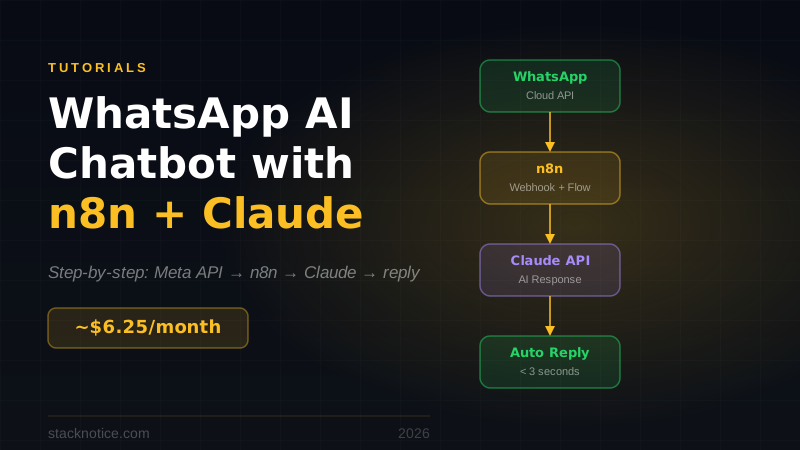
Customer message → WhatsApp Cloud API → n8n webhook
→ Load conversation history → Claude API → Save history
→ WhatsApp Cloud API → Customer receives reply
No third-party platforms. You own the entire pipeline.
Prerequisites
- A Meta Business Account (free)
- A phone number not already linked to WhatsApp (can be a virtual number)
- An Anthropic API key
- A VPS with n8n installed (covered below)
Step 1: Self-Host n8n on a VPS
Your n8n instance needs a public URL for WhatsApp to send webhooks to. A local machine won't work unless you use ngrok — fine for testing, not for production.
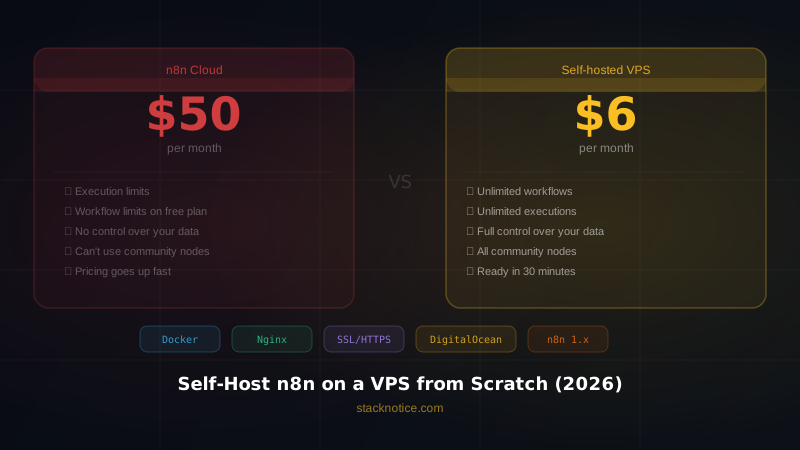
The cheapest option that works well: a VPS with at least 2GB RAM. Hostinger KVM 2 (~$5-7/month) or Hetzner CX22 (€4.35/month) are both solid choices. This is the same setup covered in the self-host n8n guide — follow that to get n8n running with HTTPS before continuing here.
Once n8n is running at https://your-domain.com, come back.
Step 2: Set Up WhatsApp Business Cloud API
Meta's WhatsApp Cloud API is free for the first 1,000 conversations per month. After that, pricing is per conversation (typically $0.005-0.08 depending on country and conversation type).
2a. Create a Meta App
- Go to developers.facebook.com
- Click My Apps → Create App
- Select Business as the app type
- Fill in name and contact email
- On the next screen, find WhatsApp and click Set up
2b. Add a Phone Number
In the WhatsApp setup screen, you'll see a Test phone number already available (for testing). For production, click Add phone number and follow the verification steps.
Note the Phone Number ID and WhatsApp Business Account ID — you'll need these later.
2c. Generate a Permanent Token
By default, Meta gives you a temporary token that expires in 24 hours. For production:
- Go to your Meta Business settings
- Users → System Users → Add
- Create a system user with Admin role
- Click Add Assets → select your WhatsApp app → give Full Control
- Click Generate New Token → select your app → choose permissions:
whatsapp_business_messagingwhatsapp_business_management
- Copy the token — it doesn't expire
Store it somewhere safe. You'll use it as WHATSAPP_TOKEN in n8n.
Step 3: Configure the Webhook in n8n
3a. Create the Webhook Node
In n8n, create a new workflow:
- Add a Webhook node
- Set HTTP Method to
POST - Set Path to
whatsapp(your URL will behttps://your-domain.com/webhook/whatsapp) - Set Authentication to
None(Meta handles this differently) - Click Listen for Test Event — keep this open
Your webhook URL is now: https://your-domain.com/webhook/whatsapp
3b. Register the Webhook with Meta
Back in the Meta developer dashboard:
- In your WhatsApp app → Configuration → Webhook
- Click Edit
- Callback URL:
https://your-domain.com/webhook/whatsapp - Verify token: choose any string (e.g.,
my-secret-token-123) - Click Verify and Save
Meta sends a GET request with a hub.challenge parameter to verify ownership. n8n's webhook node handles this automatically — it returns the challenge value.
- Once verified, click Subscribe on these webhook fields:
messages— incoming messagesmessage_status— delivery receipts (optional)
Step 4: Build the n8n Workflow
Here's the complete workflow logic:
Webhook → IF (is it a message?) → Extract text + sender
→ Load history from database → Call Claude API
→ Save updated history → Send WhatsApp reply
Node 1: Webhook (already created)
Node 2: IF — Filter Real Messages
Meta sends various event types (status updates, read receipts). You only want actual text messages:
- Condition:
{{ $json.body.entry[0].changes[0].value.messages }}exists
Node 3: Code — Extract Message Data
Add a Code node to parse the incoming message:
const body = $input.first().json.body;
const entry = body.entry[0];
const change = entry.changes[0].value;
const message = change.messages[0];

return [{
  json: {
    from: message.from,          // sender's phone number
    messageId: message.id,
    text: message.text?.body || '',
    timestamp: message.timestamp,
    phoneNumberId: change.metadata.phone_number_id,
    displayName: change.contacts?.[0]?.profile?.name || 'Customer'
  }
}];
Node 4: Load Conversation History
Use n8n's Postgres node (or any database node) to load previous messages:
SELECT messages
FROM whatsapp_conversations
WHERE phone_number = '{{ $json.from }}'
ORDER BY updated_at DESC
LIMIT 1;
Create the table first:
CREATE TABLE whatsapp_conversations (
  id SERIAL PRIMARY KEY,
  phone_number VARCHAR(20) UNIQUE NOT NULL,
  messages JSONB DEFAULT '[]',
  updated_at TIMESTAMP DEFAULT NOW()
);
If no history exists, default to an empty array.
Node 5: HTTP Request — Call Claude API
Add an HTTP Request node:
- Method:
POST - URL:
https://api.anthropic.com/v1/messages - Authentication: Generic Credential Type → Header Auth
- Header Name:
x-api-key - Header Value: your Anthropic API key
- Header Name:
- Add header:
anthropic-version: 2023-06-01 - Body (JSON):
{
  "model": "claude-haiku-4-5-20251001",
  "max_tokens": 1024,
  "system": "You are a helpful customer service assistant for [Your Business Name]. You help customers with questions about our products and services. Be friendly, concise, and professional. If you don't know something, say so and offer to connect them with a human agent.",
  "messages": "={{ $('Load History').item.json.messages.concat([{\"role\": \"user\", \"content\": $('Extract Message').item.json.text}]) }}"
}
Model choice: claude-haiku-4-5-20251001 is the right model here — it's fast (sub-second responses), cheap (~$0.00025 per message), and handles customer service very well. Use claude-sonnet-4-6 only if your use case requires more complex reasoning.
Node 6: Code — Build Updated History
const history = $('Load History').first().json.messages || [];
const userMessage = $('Extract Message').first().json.text;
const assistantReply = $input.first().json.content[0].text;

const updatedHistory = [
  ...history,
  { role: 'user', content: userMessage },
  { role: 'assistant', content: assistantReply }
];

// Keep last 20 messages to control token usage
const trimmedHistory = updatedHistory.slice(-20);

return [{
  json: {
    from: $('Extract Message').first().json.from,
    reply: assistantReply,
    history: trimmedHistory,
    phoneNumberId: $('Extract Message').first().json.phoneNumberId
  }
}];
Node 7: Postgres — Save Updated History
INSERT INTO whatsapp_conversations (phone_number, messages, updated_at)
VALUES ('{{ $json.from }}', '{{ JSON.stringify($json.history) }}', NOW())
ON CONFLICT (phone_number)
DO UPDATE SET messages = '{{ JSON.stringify($json.history) }}', updated_at = NOW();
Node 8: HTTP Request — Send WhatsApp Reply
- Method:
POST - URL:
https://graph.facebook.com/v19.0/{{ $('Extract Message').item.json.phoneNumberId }}/messages - Authentication: Bearer Token → your permanent WhatsApp token
- Body (JSON):
{
  "messaging_product": "whatsapp",
  "to": "={{ $json.from }}",
  "type": "text",
  "text": {
    "body": "={{ $json.reply }}"
  }
}
Step 5: Handle the Webhook Verification
Meta verifies your webhook with a GET request on initial setup. Add a second branch to your Webhook node for GET requests:
In your Webhook node, enable GET method as well. Add a Code node for the GET branch:
const query = $input.first().json.query;

if (query['hub.verify_token'] === 'my-secret-token-123') {
  return [{ json: { challenge: query['hub.challenge'] } }];
}

return [{ json: { error: 'Invalid token' } }];
Connect this to a Respond to Webhook node that returns the challenge value.
Step 6: Test It
- Activate the workflow in n8n
- From a personal WhatsApp, send a message to your WhatsApp Business number
- You should receive an AI-generated reply within 2-3 seconds
If something doesn't work:
- Check n8n execution logs — every webhook call is logged
- Verify the Meta webhook subscription is active
- Make sure your permanent token has the right permissions
- Check that the phone number ID in your URL matches
Customizing the System Prompt
The system prompt is where you define your chatbot's personality and knowledge. Good system prompts for business chatbots:
E-commerce support:
You are a support agent for [Store Name], an online clothing store.
Business hours: Mon-Fri 9am-6pm CET.
Return policy: 30 days, free returns.
Shipping: 2-5 business days in Europe, 5-10 days internationally.
If the customer wants to speak to a human, collect their name and order number and say a human agent will contact them within 2 hours.
Lead qualification:
You are a sales assistant for [Company]. Your goal is to understand
the visitor's needs and qualify them as a potential customer.
Ask: company size, current solution, main pain point, timeline.
Once you have this information, offer to schedule a demo call.
Do not give pricing — always direct to a sales call for that.
Restaurant booking:
You are the assistant for [Restaurant Name].
We are open Tuesday-Sunday, 13:00-23:00.
We have 8, 15, and 20-person private dining rooms.
Reservations require 24h notice. For groups over 10, a deposit is required.
To make a reservation, collect: date, time, party size, contact name, phone.
Common Business Use Cases
Customer support FAQ — answer common questions 24/7, escalate complex issues to a human agent during business hours.
Lead capture — qualify inbound leads before they talk to sales. Claude asks the right questions and logs the answers to your CRM via n8n.
Order status — connect n8n to your WooCommerce or Shopify store. When a customer asks about their order, query the API and reply with real data.
Appointment booking — integrate with Calendly or Google Calendar to check availability and create bookings inside the conversation.
After-hours support — keep responding to customers outside business hours. Log messages for your team to review in the morning.
Cost Breakdown
For a small business handling 500 conversations/month:
| Cost | Amount |
|---|---|
| VPS (Hostinger KVM 2) | ~$6/month |
| WhatsApp API (first 1k free) | $0 |
| Claude Haiku (500 conversations × 10 messages × ~200 tokens) | ~$0.25 |
| Total | ~$6.25/month |
Compared to WhatsApp chatbot platforms like Tidio, Intercom, or ManyChat — which charge $50-500/month for the same functionality.
Security Considerations
Validate incoming webhooks. Meta signs webhook payloads with a signature header (X-Hub-Signature-256). Verify it before processing:
const crypto = require('crypto');
const signature = $input.first().json.headers['x-hub-signature-256'];
const payload = JSON.stringify($input.first().json.body);
const appSecret = 'your-meta-app-secret';

const expected = 'sha256=' + crypto
  .createHmac('sha256', appSecret)
  .update(payload)
  .digest('hex');

if (signature !== expected) {
  throw new Error('Invalid signature');
}
Rate limiting. Add an IF node to skip processing if the same number sends more than N messages in a short period. Store message counts in your database.
Human handoff. Always give customers a way to reach a human. A simple "type AGENT" trigger that sends an alert to your team via Slack or email is enough.
For more on n8n automation and self-hosting, see the complete n8n self-hosting guide. For connecting Claude to other tools and data sources, read how to add MCP servers to Claude. For building more complex AI workflows that go beyond a single chatbot, see multi-agent systems and AI workflows.
The full source is available at stacknotice.com — including the complete n8n workflow JSON you can import directly.