Disclosure: This article contains affiliate links. If you sign up through them, I earn a small commission at no extra cost to you. I only recommend tools I use myself.
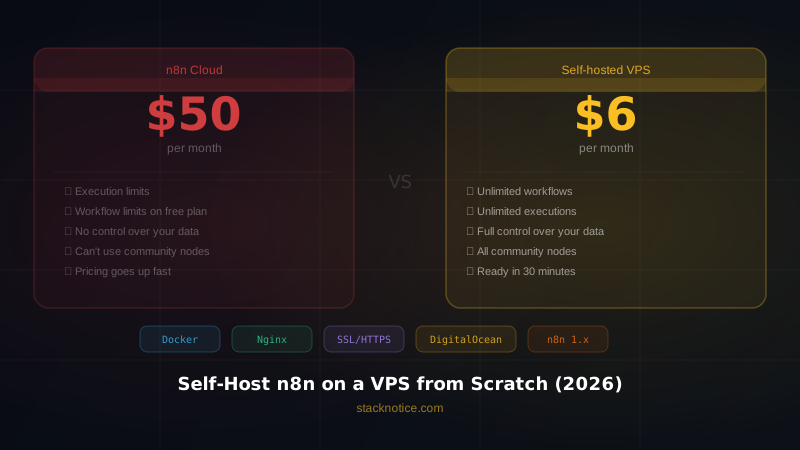
n8n Cloud costs $50/month. A DigitalOcean Droplet costs $6/month. You can run n8n yourself in under 30 minutes, with unlimited workflows, unlimited executions, and full control over your data. The only thing you're paying for is the server.
This guide takes you from zero to a production-ready n8n instance: VPS provisioned, domain connected, SSL live, Nginx proxying traffic, and your first automation running. Every command is real. Copy-paste and go.
What You'll Need
Before you start, make sure you have:
- A VPS — DigitalOcean is the best pick for this guide — new accounts get $200 in free credits for 60 days, which means you're running this setup for free while you evaluate it. The $6/mo Basic Droplet (1 vCPU / 1GB RAM / 25GB SSD) handles n8n comfortably for personal use and small teams. If you're in Europe, Hetzner's CX22 at ~€4/mo is also excellent value.
- A domain name — you probably already have one. If not, Namecheap has .com domains from ~$10/year and the DNS management panel is clean to work with. You'll use a subdomain like
n8n.yourdomain.com. - ~30 minutes — serious. This is not one of those guides where "30 minutes" means 4 hours. Follow the steps in order and you'll be done fast.
No prior Linux expertise required. You need to know how to open a terminal and paste commands. That's it.
Step 1 — Create Your VPS
Head to DigitalOcean — you can get $200 in free credits for 60 days using that referral link, which means you're testing this setup for free. That's a good deal.
Once you're in the dashboard:
- Click Create → Droplets
- Image: Ubuntu 22.04 LTS (not 24.04 — some packages still have rough edges)
- Plan: Basic → Regular SSD → $6/mo (1GB RAM / 1 vCPU / 25GB SSD)
- Region: pick the one closest to your users. For most people in the US, choose New York or San Francisco. For Europe, Amsterdam or Frankfurt.
- Authentication: SSH Key — not password. If you haven't added your SSH key to DigitalOcean yet, click "New SSH Key" and paste the contents of
~/.ssh/id_rsa.pub(or~/.ssh/id_ed25519.pubif you're using Ed25519). If you don't have an SSH key at all, generate one first:
ssh-keygen -t ed25519 -C "your@email.com"- Give the Droplet a hostname like
n8n-serverand click Create Droplet.
Write down the IP address — you'll use it in the next step.
Why not n8n Cloud? n8n Cloud Starter at $24/mo limits you to 5 active workflows and 2,500 executions/month. Cloud Pro at $50/mo gives you 15 workflows and 10,000 executions. Self-hosted gives you unlimited everything for $6/mo. The math is obvious.
Step 2 — Point Your Domain to the VPS
You want n8n accessible at n8n.yourdomain.com. Go to wherever your domain's DNS is managed (Namecheap, Cloudflare, Google Domains — wherever you bought it) and add an A record:
| Type | Host | Value | TTL |
|---|---|---|---|
| A | n8n | YOUR_VPS_IP | Automatic |
If your domain is stacknotice.com and your VPS IP is 167.99.12.34, you're adding n8n.stacknotice.com → 167.99.12.34.
DNS propagation takes anywhere from 2 minutes (Cloudflare) to 30 minutes (most other registrars). While you wait, move on to the server setup — by the time you need the domain to resolve, it will.
Step 3 — SSH Into Your Server and Update It
ssh root@YOUR_VPS_IPThe first time you connect you'll see a fingerprint confirmation prompt. Type yes. Once you're in, immediately update the system:
apt update && apt upgrade -yThis takes 1-3 minutes. Don't skip it — Ubuntu images on cloud providers are never fully up to date on day one.
While you're here, set the hostname so your terminal prompt makes sense:
hostnamectl set-hostname n8n-serverStep 4 — Install Docker and Docker Compose
Docker is how you'll run n8n without fighting with Node.js version conflicts or global package headaches. The official install script is the fastest approach:
curl -fsSL https://get.docker.com | shThis installs Docker Engine and the Compose plugin in one shot. Verify everything is working:
docker --version
docker compose version
You should see something like Docker version 26.x.x and Docker Compose version v2.x.x. If you see errors, double-check your Ubuntu version is 22.04.
No need to add your user to the docker group — you're running as root on a dedicated VPS, so it doesn't matter.
Step 5 — Create the n8n Docker Compose File
Create the directory where n8n will live:
mkdir -p /opt/n8n
cd /opt/n8n
Now create the Docker Compose file. Use nano — it's simpler than vim if you're not comfortable with the command line:
nano docker-compose.ymlPaste this exact configuration:
version: '3.8'

services:
  n8n:
    image: docker.n8n.io/n8nio/n8n
    container_name: n8n
    restart: always
    ports:
      - "5678:5678"
    environment:
      - N8N_HOST=n8n.yourdomain.com
      - N8N_PORT=5678
      - N8N_PROTOCOL=https
      - NODE_ENV=production
      - WEBHOOK_URL=https://n8n.yourdomain.com/
      - GENERIC_TIMEZONE=America/New_York
      - N8N_BASIC_AUTH_ACTIVE=false
    volumes:
      - n8n_data:/home/node/.n8n

volumes:
  n8n_data:
Replace n8n.yourdomain.com with your actual subdomain. Replace America/New_York with your timezone — use the TZ identifier format (Europe/Madrid, America/Los_Angeles, Asia/Tokyo, etc.).
Save and exit: Ctrl+O, Enter, Ctrl+X.
Start n8n:
docker compose up -dDocker pulls the n8n image (~500MB) and starts the container. This takes about a minute on first run. Verify it's running:
docker psYou should see your n8n container with status Up. n8n is now running on port 5678, but it's only accessible locally. Next step: expose it to the internet through Nginx.
Step 6 — Install and Configure Nginx
Nginx acts as a reverse proxy — it receives HTTPS traffic on port 443 and forwards it to n8n on port 5678. This is the standard setup for any self-hosted service.
apt install nginx -yCreate the n8n site configuration:
nano /etc/nginx/sites-available/n8nPaste this:
server {
    listen 80;
    server_name n8n.yourdomain.com;

    location / {
        proxy_pass http://localhost:5678;
        proxy_http_version 1.1;
        proxy_set_header Upgrade $http_upgrade;
        proxy_set_header Connection 'upgrade';
        proxy_set_header Host $host;
        proxy_set_header X-Real-IP $remote_addr;
        proxy_set_header X-Forwarded-For $proxy_add_x_forwarded_for;
        proxy_set_header X-Forwarded-Proto $scheme;
        proxy_cache_bypass $http_upgrade;
        chunked_transfer_encoding off;
        proxy_buffering off;
        proxy_read_timeout 3600s;
    }
}
The proxy_read_timeout 3600s is important — n8n workflows can run for a long time, and the default 60s timeout will kill long-running executions. The chunked_transfer_encoding off and proxy_buffering off are required for n8n's server-sent events (SSE) to work correctly in the UI.
Enable the site and test the config:
ln -s /etc/nginx/sites-available/n8n /etc/nginx/sites-enabled/
nginx -t
You should see syntax is ok and test is successful. If not, check for typos in the config. Then reload Nginx:
systemctl reload nginxStep 7 — Get Free SSL with Certbot
HTTPS is non-negotiable. n8n handles webhooks from external services — sending data over plain HTTP is a security risk and many services (Stripe, GitHub, etc.) won't even let you configure an HTTP webhook URL.
Certbot gives you a free Let's Encrypt certificate and auto-configures Nginx:
apt install certbot python3-certbot-nginx -y
certbot --nginx -d n8n.yourdomain.com
Certbot will ask for:
- Your email address (for renewal notices)
- Whether to agree to the Terms of Service — type
Y - Whether to share your email with EFF — your call,
Nis fine
Certbot automatically modifies your Nginx config to add the SSL certificate and redirects HTTP to HTTPS. It also sets up a cron job for automatic renewal.
Verify the certificate is installed:
certbot certificatesYou should see your domain with an expiry date 90 days out. Renewal is fully automatic — you never have to think about this again.
Step 8 — Access Your n8n Instance
Open your browser and go to https://n8n.yourdomain.com.
You'll see the n8n setup screen asking you to create an owner account. Fill in your name, email, and a strong password. This is the admin account for your instance — use a password manager and generate something random.
Once you're in, you're looking at a fresh, empty n8n workspace. It works exactly like n8n Cloud, because it is n8n — same version, same nodes, same everything. The only difference is you're running it on your own server.
Take a minute to explore the interface if this is your first time using n8n. The left sidebar has your workflows, credentials, and settings. The big canvas is where you build automations.
Step 9 — Your First Automation (5 Minutes)
Let's build something actually useful: a webhook that receives form data, saves it to Google Sheets, and sends a Slack notification. This pattern covers 80% of real automation use cases.
Build the workflow
1. Add a Webhook trigger node
Click the + button on the canvas → search for "Webhook" → select it. In the node settings:
- HTTP Method: POST
- Path:
test(this creates the URLhttps://n8n.yourdomain.com/webhook/test) - Response Mode: Last Node
2. Add a Google Sheets node
Click the + on the Webhook node → search "Google Sheets" → select Append or Update Row. You'll need to:
- Click Create new credential → authenticate with your Google account
- Select your spreadsheet and sheet
- Map the incoming data fields to columns (e.g.,
name→ column A,email→ column B)
3. Add a Slack node
Click + on the Google Sheets node → search "Slack" → select Send a Message. Configure:
- Create a Slack credential (OAuth2 or Bot Token)
- Select your channel
- Set the message to something like:
New submission from {{ $json.name }} ({{ $json.email }})
4. Activate the workflow
Toggle the Active switch in the top-right corner. The workflow is now live and listening for incoming requests.
5. Test it
From your local terminal (not the VPS), run:
curl -X POST https://n8n.yourdomain.com/webhook/test \
  -H "Content-Type: application/json" \
  -d '{"name": "John Doe", "email": "john@example.com"}'
Check your Google Sheet — you should see a new row. Check your Slack channel — you should see the notification. If both appear, your automation is working.
This same pattern works for Stripe webhooks, GitHub events, Typeform submissions, Calendly bookings — anything that sends an HTTP POST. You just swap the trigger.
Useful Commands to Manage Your n8n Instance
Bookmark this section. You'll come back to it.
# View live logs (Ctrl+C to exit)
docker compose -f /opt/n8n/docker-compose.yml logs -f

# Restart n8n (useful after config changes)
docker compose -f /opt/n8n/docker-compose.yml restart

# Update n8n to the latest version
docker compose -f /opt/n8n/docker-compose.yml pull
docker compose -f /opt/n8n/docker-compose.yml up -d

# Stop n8n
docker compose -f /opt/n8n/docker-compose.yml down

# Check container status and resource usage
docker stats n8n

# Backup your n8n data (workflows, credentials, executions)
docker run --rm \
  -v n8n_data:/data \
  -v $(pwd):/backup \
  alpine tar czf /backup/n8n-backup-$(date +%Y%m%d).tar.gz /data

# Restore from backup
docker run --rm \
  -v n8n_data:/data \
  -v $(pwd):/backup \
  alpine tar xzf /backup/n8n-backup-20260409.tar.gz -C /
Set up automatic backups: Add a cron job to back up daily and keep the last 7 days.
crontab -eAdd this line:
0 2 * * * docker run --rm -v n8n_data:/data -v /opt/n8n/backups:/backup alpine tar czf /backup/n8n-$(date +\%Y\%m\%d).tar.gz /data && find /opt/n8n/backups -name "*.tar.gz" -mtime +7 -deleteThis runs at 2am every night, creates a dated backup, and deletes files older than 7 days. Create the backup directory first:
mkdir -p /opt/n8n/backupsCost Comparison
Here's the full picture of what you're saving:
| Plan | Monthly Cost | Active Workflows | Executions/Month | Storage |
|---|---|---|---|---|
| n8n Cloud Starter | $24/mo | 5 | 2,500 | Limited |
| n8n Cloud Pro | $50/mo | 15 | 10,000 | Limited |
| n8n Enterprise | Custom | Unlimited | Unlimited | Custom |
| Self-hosted (this guide) | $6/mo | Unlimited | Unlimited | 25GB+ |
The Starter plan at $24/mo is nearly 4x the cost for a fraction of the capability. The Pro plan at $50/mo is over 8x more expensive. Over a year, self-hosting saves you $528 vs Cloud Pro. Over two years, that's over $1,000 — enough to buy a lot of other tools.
The only thing you give up with self-hosting is managed updates and support. Updates are a single command. Support is Stack Overflow and the n8n community forum, which are excellent.
Frequently Asked Questions
Is self-hosting n8n secure?
Yes, if you set it up correctly. SSL via Certbot encrypts all traffic. Your n8n login protects the UI. For extra security, you can add basic auth at the Nginx level by setting these environment variables in your Docker Compose file:
- N8N_BASIC_AUTH_ACTIVE=true
- N8N_BASIC_AUTH_USER=admin
- N8N_BASIC_AUTH_PASSWORD=a-strong-random-password
This adds a username/password prompt before n8n's own login screen. Overkill for most setups, but worth considering if you're handling sensitive data.
Can I use n8n with Claude AI?
Yes — and it's genuinely powerful. n8n has an HTTP Request node that works directly with the Anthropic API. You can build workflows that receive a webhook, process it with Claude, and send the result somewhere else — all without writing code. We've covered building AI agents with Claude in depth in Building Your First AI Agent with Claude. A dedicated n8n + Claude guide is coming soon.
If you want to go deeper on the protocol side of how AI tools communicate with external services, check out our Complete Guide to Model Context Protocol (MCP) — n8n's architecture maps well to how MCP thinks about tool calls and context.
What if my VPS goes down?
Docker's restart: always policy means n8n automatically restarts if it crashes or if the server reboots. For visibility, set up a free monitor at UptimeRobot — it pings your n8n URL every 5 minutes and emails you if it goes down. Takes 2 minutes to configure.
If you need higher availability, upgrade to a $12/mo Droplet with 2GB RAM or look into DigitalOcean's managed database options. For personal automation and small teams, the $6/mo Droplet is rock-solid.
Can I migrate from n8n Cloud to self-hosted?
Absolutely. In your n8n Cloud dashboard, go to Settings → Export Workflows to download all your workflows as a JSON file. In your self-hosted instance, go to Workflows → Import from File and upload it. Your workflows come over intact — you just need to re-authenticate any credentials (OAuth tokens, API keys) since those can't be exported for security reasons.
Do I need to manually renew the SSL certificate?
No. Certbot installs a cron job (or systemd timer) that automatically renews certificates before they expire. You can verify automatic renewal is configured:
systemctl status certbot.timerOr test the renewal process without actually renewing:
certbot renew --dry-runCan I run other services on the same VPS?
Yes. You can run other Docker containers alongside n8n. Just create separate Nginx configs for each service and get separate SSL certificates with Certbot. One $6/mo Droplet can comfortably run n8n plus a small API service or a Ghost blog. The 1GB RAM limit is the main constraint — watch it with docker stats.
How do I update n8n when a new version drops?
n8n releases updates frequently. To update:
cd /opt/n8n
docker compose pull
docker compose up -d
Docker pulls the latest image and restarts the container with zero data loss. Your workflows, credentials, and execution history are stored in the n8n_data volume, which persists across updates. Check the n8n changelog before updating major versions.
Conclusion
You now have a production-ready n8n instance running on your own infrastructure. SSL, Nginx, Docker, automatic restarts — the full stack. What cost you $50/month on n8n Cloud now costs $6/month, with no workflow limits, no execution caps, and your data staying on your own server.
The real value of self-hosting isn't just the money. It's that you're not constrained by arbitrary plan limits when an automation idea hits. Build the workflow, activate it, move on. No upgrade prompts, no execution counters, no "you've hit your limit this month."
What's next: The follow-up guide covers connecting n8n to Claude AI — how to build intelligent automations that classify emails, summarize documents, route support tickets, and generate content drafts. Already live: Build a WhatsApp AI chatbot with n8n and Claude — step-by-step from scratch.
Want to skip ahead? Download the free n8n workflow template pack — 5 ready-to-import automation workflows including the Google Sheets + Slack pattern from Step 9, a daily digest workflow, and a Claude AI classification template. Subscribe to the newsletter and you'll get the download link immediately.