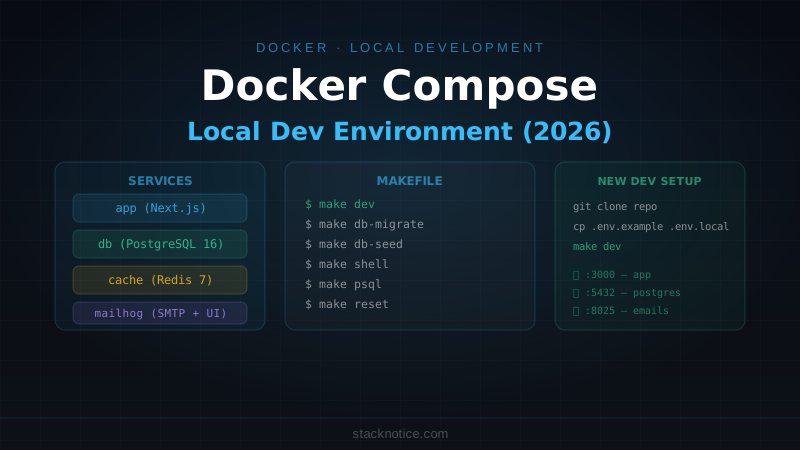
The "it works on my machine" problem has a reliable fix: run the same containers locally that you run in production. Docker Compose makes this a single command for anyone who clones your repo, regardless of their OS or what versions of Postgres or Redis they have installed.
This guide covers a full local development environment for a Next.js application — Postgres, Redis, email testing, hot reload inside Docker, health checks, and the Makefile shortcuts that make it frictionless to use every day. This is specifically for local development; for production Docker setup see the Docker + Next.js production guide.
Why Docker Compose for Local Dev
Without it: each developer installs Postgres, Redis, and any other services locally. Different versions, different configurations, different OS behaviors. New team members spend hours on setup. "It worked in staging" becomes a real conversation.
With it: git clone → docker compose up → working environment. Same versions, same configuration, same behavior as every other developer and as staging.
The tradeoff: Docker adds overhead. On Mac, there's a noticeable performance cost for file-system-intensive operations (like node_modules). This guide addresses that.
Project Structure
myapp/
├── app/                    # Next.js app
├── docker/
│   ├── postgres/
│   │   └── init.sql        # initial schema + seed data
│   └── mailhog/            # no config needed
├── docker-compose.yml      # services definition
├── docker-compose.override.yml  # local overrides (not committed)
├── Dockerfile              # app container
├── Dockerfile.dev          # development container with hot reload
├── .env.example            # template for .env
├── Makefile                # shortcuts
└── .dockerignore
The Core docker-compose.yml
# docker-compose.yml
services:
  app:
    build:
      context: .
      dockerfile: Dockerfile.dev
    ports:
      - "3000:3000"
    volumes:
      # Mount source code — changes are reflected immediately
      - .:/app
      # But DON'T mount node_modules from host — use container's version
      - /app/node_modules
      - /app/.next
    environment:
      - NODE_ENV=development
      - DATABASE_URL=postgresql://postgres:postgres@db:5432/myapp
      - REDIS_URL=redis://cache:6379
      - SMTP_HOST=mailhog
      - SMTP_PORT=1025
    env_file:
      - .env.local
    depends_on:
      db:
        condition: service_healthy   # wait until Postgres is actually ready
      cache:
        condition: service_started
    networks:
      - myapp

  db:
    image: postgres:16-alpine
    ports:
      - "5432:5432"          # expose for local tools (TablePlus, psql)
    environment:
      POSTGRES_USER: postgres
      POSTGRES_PASSWORD: postgres
      POSTGRES_DB: myapp
    volumes:
      - postgres_data:/var/lib/postgresql/data  # persist data between restarts
      - ./docker/postgres/init.sql:/docker-entrypoint-initdb.d/init.sql
    healthcheck:
      test: ["CMD-SHELL", "pg_isready -U postgres -d myapp"]
      interval: 5s
      timeout: 5s
      retries: 5
    networks:
      - myapp

  cache:
    image: redis:7-alpine
    ports:
      - "6379:6379"
    volumes:
      - redis_data:/data
    command: redis-server --appendonly yes   # persist data
    networks:
      - myapp

  mailhog:
    image: mailhog/mailhog:latest
    ports:
      - "1025:1025"   # SMTP — app sends emails here
      - "8025:8025"   # Web UI — view emails at localhost:8025
    networks:
      - myapp

volumes:
  postgres_data:
  redis_data:

networks:
  myapp:
    driver: bridge
Services communicate by service name within the myapp network: the app reaches Postgres at db:5432, Redis at cache:6379, and the mail server at mailhog:1025.
Development Dockerfile with Hot Reload
# Dockerfile.dev
FROM node:20-alpine

WORKDIR /app

# Install dependencies first (layer cache optimization)
COPY package*.json ./
RUN npm ci

# The rest is mounted via volume — don't copy source
EXPOSE 3000

CMD ["npm", "run", "dev"]
The key: source code is mounted as a volume, not copied. Changes on the host are immediately visible inside the container. npm run dev (Next.js with --turbopack) watches for file changes just as it would outside Docker.
The node_modules exclusion in docker-compose.yml (- /app/node_modules) prevents the host's node_modules from shadowing the container's. The container installed its own node_modules during docker build — those are used, not the host's.
.env Setup
# .env.example (committed — template for team)
DATABASE_URL=postgresql://postgres:postgres@db:5432/myapp
REDIS_URL=redis://cache:6379
SMTP_HOST=mailhog
SMTP_PORT=1025
NEXTAUTH_URL=http://localhost:3000
NEXTAUTH_SECRET=
NEXT_PUBLIC_APP_URL=http://localhost:3000

# .env.local (not committed — real secrets + local overrides)
NEXTAUTH_SECRET=generate-a-real-secret-here
STRIPE_SECRET_KEY=sk_test_...
STRIPE_PUBLISHABLE_KEY=pk_test_...
.env.local is loaded by both Next.js and docker compose (via env_file). Team members copy .env.example to .env.local and fill in their own API keys.
docker-compose.override.yml: Local Customization
Each developer can have local overrides without committing them:
# docker-compose.override.yml (not committed — each dev's personal setup)
services:
  app:
    environment:
      - DEBUG=true
      - NEXT_PUBLIC_SHOW_DEBUG_TOOLBAR=true
    ports:
      - "3001:3000"  # use port 3001 if 3000 is taken on your machine
Docker Compose automatically merges docker-compose.yml with docker-compose.override.yml. Add it to .gitignore.
Database Initialization
-- docker/postgres/init.sql
-- This runs once when the container is first created

CREATE EXTENSION IF NOT EXISTS "uuid-ossp";
CREATE EXTENSION IF NOT EXISTS "pg_trgm";  -- for full-text search

-- Create test database for CI
CREATE DATABASE myapp_test;
GRANT ALL PRIVILEGES ON DATABASE myapp_test TO postgres;
For schema migrations, don't use init.sql — use your ORM's migration tool (Drizzle Kit, Prisma migrate) after the container starts.
The Makefile
A Makefile removes the need to remember long Docker commands:
# Makefile
.PHONY: dev down reset db-migrate db-seed db-reset logs shell test

# Start development environment
dev:
	docker compose up --build

# Start in background
dev-bg:
	docker compose up --build -d

# Stop all services
down:
	docker compose down

# Stop and remove volumes (fresh start)
reset:
	docker compose down -v
	docker compose up --build

# Run database migrations
db-migrate:
	docker compose exec app npm run db:migrate

# Run database seed
db-seed:
	docker compose exec app npm run db:seed

# Full database reset (drop + recreate + migrate + seed)
db-reset:
	docker compose exec db psql -U postgres -c "DROP DATABASE IF EXISTS myapp;"
	docker compose exec db psql -U postgres -c "CREATE DATABASE myapp;"
	docker compose exec app npm run db:migrate
	docker compose exec app npm run db:seed

# View logs for all services
logs:
	docker compose logs -f

# View logs for a specific service: make logs-app
logs-%:
	docker compose logs -f $*

# Open a shell in the app container
shell:
	docker compose exec app sh

# Open psql
psql:
	docker compose exec db psql -U postgres -d myapp

# Run tests inside container
test:
	docker compose exec app npm test

# Install a new package: make add pkg=zod
add:
	docker compose exec app npm install $(pkg)
	docker compose restart app

# Check which services are running
status:
	docker compose ps
Now the onboarding flow for a new developer is:
git clone https://github.com/org/myapp
cd myapp
cp .env.example .env.local
# Fill in any real API keys in .env.local
make dev
# Open http://localhost:3000
Performance on Mac: Avoiding the Slowdown
Docker Desktop on Mac uses a Linux VM under the hood. File system operations that cross the VM boundary (like node_modules reads) are slow. The solution we already applied (- /app/node_modules) prevents the host's node_modules from being used, but there's more:
Use named volumes for write-heavy directories:
# docker-compose.yml
services:
  app:
    volumes:
      - .:/app
      - node_modules:/app/node_modules   # named volume, lives in the VM
      - next_cache:/app/.next             # .next cache also benefits

volumes:
  node_modules:
  next_cache:
  postgres_data:
  redis_data:
Named volumes for node_modules and .next live entirely inside the Linux VM — no VM boundary crossing, dramatically faster npm install and Next.js build times.
The tradeoff: you can't easily inspect node_modules from the host with named volumes. For most use cases this is fine.
Enable VirtioFS in Docker Desktop:
Settings → General → "Use VirtioFS" (macOS Ventura+). This is Apple's faster file sharing protocol for Docker Desktop and significantly improves file sync performance.
Health Checks and Service Dependencies
The app service uses depends_on with condition: service_healthy for Postgres. This prevents Next.js from starting before the database is accepting connections:
depends_on:
  db:
    condition: service_healthy   # waits for the healthcheck to pass
Without this, Next.js might try to connect to Postgres before it's initialized, fail, and crash. The health check runs pg_isready every 5 seconds with a 5-retry tolerance.
For Redis, which starts much faster, service_started is enough:
cache:
  condition: service_started
Running Migrations and Seeds on Startup
If you want migrations to run automatically when the stack starts:
# docker-compose.yml — app service command
services:
  app:
    command: >
      sh -c "npm run db:migrate && npm run dev"
Or keep it manual (recommended) and run make db-migrate after make dev. Automatic migration is convenient but can cause problems if a migration fails — the app never starts, and diagnosing it requires logs.
CI/CD with the Same Stack
The same docker-compose.yml works in GitHub Actions:
# .github/workflows/test.yml
name: Test

on: [push, pull_request]

jobs:
  test:
    runs-on: ubuntu-latest
    steps:
      - uses: actions/checkout@v4

      - name: Start services
        run: docker compose up -d db cache

      - name: Wait for Postgres
        run: |
          until docker compose exec -T db pg_isready -U postgres; do
            sleep 1
          done

      - name: Install dependencies
        run: npm ci

      - name: Run migrations
        run: DATABASE_URL=postgresql://postgres:postgres@localhost:5432/myapp npm run db:migrate

      - name: Run tests
        run: npm test
        env:
          DATABASE_URL: postgresql://postgres:postgres@localhost:5432/myapp
          REDIS_URL: redis://localhost:6379
In CI, the app itself runs directly (not inside Docker) for faster test execution, but Postgres and Redis use the same Docker images as local development.
Useful Docker Commands Reference
# Start everything
docker compose up

# Start in background
docker compose up -d

# Rebuild the app image (after Dockerfile changes)
docker compose up --build

# Stop everything
docker compose down

# Stop and delete volumes (complete reset)
docker compose down -v

# View logs
docker compose logs -f app

# Run a command inside a running container
docker compose exec app npm run db:migrate

# Open a shell
docker compose exec app sh

# Check container status
docker compose ps

# Remove all stopped containers and dangling images
docker system prune

# View resource usage
docker stats
The .dockerignore
Prevent large directories from being sent to the Docker build context:
node_modules
.next
.git
.env*.local
*.log
coverage
.DS_Store
This makes docker build faster by not copying node_modules (which would immediately be overwritten by npm ci anyway).
Quick Start for a New Team Member
# 1. Clone
git clone https://github.com/org/myapp && cd myapp

# 2. Configure secrets
cp .env.example .env.local
# Open .env.local and add API keys

# 3. Start everything
make dev

# 4. In another terminal: run migrations
make db-migrate

# 5. Open the app
open http://localhost:3000

# View emails sent by the app
open http://localhost:8025
The MailHog UI at localhost:8025 catches all emails the app sends during development — registration emails, password resets, notifications — without needing real SMTP credentials or accidentally emailing real users.