Cursor started as a fork of VS Code with AI built in and has grown into the editor most developers actually reach for when doing serious AI-assisted coding. If you've tried GitHub Copilot and found it too passive, or Claude Code and found it too terminal-centric, Cursor sits in the middle — full IDE experience with aggressive AI integration at every level.
This guide covers what Cursor actually does well, how to configure it for a real codebase, and how to think about it alongside other AI coding tools.
What Cursor Is (and Isn't)
Cursor is a fork of VS Code, which means:
- All your VS Code extensions work
- Your keybindings and themes carry over
- The file explorer, debugger, git panel — identical
- You can import your VS Code profile in one click
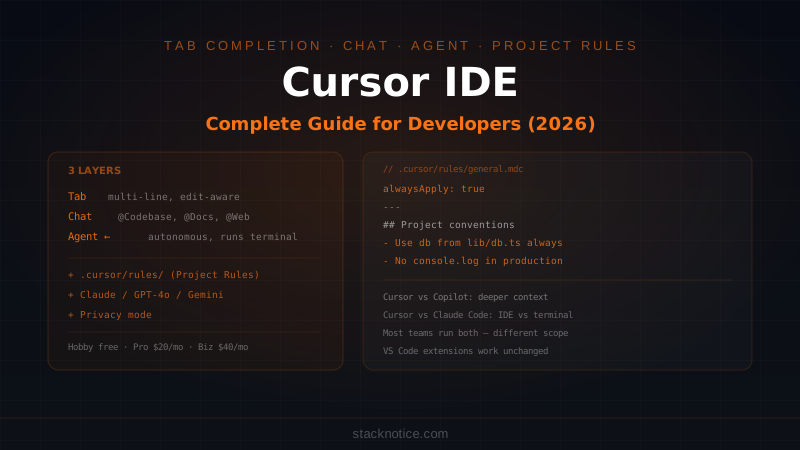
The difference is that AI is built into the editor at a deeper level than any extension can achieve. Tab completion, chat, and agent mode share the same context model. They all see the same codebase, the same open files, and the same project rules.
What Cursor is not: a replacement for the terminal or for system-level automation. For running scripts, managing processes, or automating workflows across multiple repos, Claude Code or raw scripting is still better. Cursor's power is in the IDE experience itself.
The Three Core Features
Tab Completion
Tab completion in Cursor is significantly more aggressive than GitHub Copilot's. Where Copilot completes the current line or block, Cursor predicts multi-line edits — it can suggest an entire function refactor, not just the next line.
The model watches what you're editing and anticipates what comes next. You'll frequently see it complete the symmetrical side of a change: rename a prop in one place and Tab will suggest the same rename everywhere it appears in the current file.
Practical tip: press Tab quickly without overthinking it. The suggestions are better than they look at first glance, and rejecting with Escape is instant. The speed of iteration matters more than perfection on any single suggestion.
Cursor Chat
Chat in Cursor (Cmd+L / Ctrl+L) opens a panel with full context of your codebase. Unlike ChatGPT or Claude.ai in the browser, Cursor Chat can see:
- All open files (
@Files) - The entire codebase via semantic search (
@Codebase) - Specific symbols, classes, or functions (
@) - External documentation (
@Docs) - Web search results (
@Web) - Current git diff (
@Git)
The @Codebase context is what makes chat genuinely useful for existing projects — you can ask "where is the rate limiting applied?" or "what's the pattern we use for API error handling?" and get answers grounded in your actual code, not guesses.
Chat modes:
- Ask — answers without making changes
- Edit — applies targeted changes to specific files
- Agent — autonomous, can run commands and fix errors
Switch between them with the dropdown at the top of the chat panel.
Agent Mode
Agent mode in Cursor (also called Composer in earlier versions) is the autonomous workflow. You describe a task, Cursor plans the changes, edits files, runs terminal commands, reads the output, and iterates.
Add Stripe subscription management to this Next.js app.

Requirements:
- Monthly and yearly plans (use NEXT_PUBLIC_STRIPE_PRICE_IDs from env)
- Webhook handler at /api/webhooks/stripe for subscription events
- Protect /dashboard behind active subscription check
- Show subscription status and manage button in account settings

Follow the existing auth pattern in lib/auth.ts.
Agent mode reads your codebase, identifies the relevant files, and executes without you specifying which files to touch. The terminal integration means it can run npm install, npx prisma migrate, or your test suite and respond to errors.
Before it starts: Cursor shows a plan. Always read it. If the approach is wrong (wrong files, wrong pattern), correct it before it edits 20 files.
Project Rules
Project Rules are Cursor's equivalent of Claude Code's CLAUDE.md — persistent instructions that apply to every conversation in the project.
Rules live in .cursor/rules/ as .mdc files. You can have multiple rule files, each applied to different parts of the codebase:
.cursor/
  rules/
    general.mdc        # applies everywhere
    api-routes.mdc     # applies to app/api/**
    components.mdc     # applies to components/**
    testing.mdc        # applies to **/*.test.ts
Each file has a header that controls when it activates:
---
description: Rules for Next.js API routes
globs: ["app/api/**/*.ts"]
alwaysApply: false
---

## API Route conventions

- Always use the Route Handler pattern (not pages/api)
- Validate request body with Zod before using it
- Return consistent error shapes: { error: string, code: string }
- Use the db singleton from lib/db.ts — never instantiate PrismaClient directly
- Auth check: use getServerSession() from lib/auth.ts at the top of every handler
- Log errors with logger from lib/logger.ts, not console.error
Rules that apply everywhere (authentication patterns, coding style, import conventions):
---
description: General project conventions
alwaysApply: true
---

## Project: StackPulse (Next.js 15 + TypeScript + Prisma)

### Code style
- TypeScript strict mode — no `any`, no type assertions unless absolutely necessary
- Prefer `const` over `let`. Never use `var`
- Named exports, not default exports (except Next.js page components)
- Error handling: throw typed errors, never swallow silently

### File conventions
- Components: PascalCase in components/ directory
- Utilities: camelCase in lib/ directory
- Types: PascalCase interfaces, co-located with the feature they belong to

### Do not
- Add console.log in production code
- Expose Prisma models directly in API responses — use select to whitelist fields
- Import from @prisma/client in components — database access server-side only
The more specific your rules, the better agent mode performs. Vague rules like "write good code" have no effect. Specific rules like "always use the db singleton from lib/db.ts" prevent entire classes of mistakes.
Context Management
Cursor's context system is what separates it from basic code completion. Understanding it helps you get dramatically better output.
@Codebase
Semantic search across your entire project. Use it when you need answers about the whole codebase:
@Codebase Where is the user's subscription status checked?
I want to add a new check in the dashboard.
Cursor runs a vector search over your code, finds the relevant files, and answers with grounding. Much faster than grepping manually.
@Docs
Add documentation for any library you're using. Cursor fetches and indexes it:
- Open Settings → Features → Docs
- Add a URL:
https://docs.stripe.com/api - Now
@Docs Stripeis available in any chat
This is especially valuable for libraries with complex APIs (Stripe, Prisma, Twilio) where the model's training data might be out of date.
@Web
Real-time web search for anything not in your codebase or docs:
@Web What's the current syntax for Prisma 6 transactions?
Use @Web when you suspect the model's knowledge is stale (new library versions, recent API changes).
@Git
Reference your git history in context:
@Git What changed in the last 3 commits related to authentication?
Useful for understanding recent changes before making modifications, or for writing PR descriptions.
Models Available in Cursor
Cursor lets you choose the model per feature (Tab, Chat, Agent). As of mid-2026:
| Model | Best for |
|---|---|
| Claude Sonnet 4.5 | Agent mode, complex multi-file tasks |
| Claude Opus 4 | Hard architectural decisions, complex reasoning |
| GPT-4o | Fast chat, quick questions |
| Gemini 2.5 Pro | Large context (1M tokens), reading big codebases |
| cursor-small | Tab completion (fast, low cost) |
The default Tab completion model is cursor-small — a fast, cheap model optimized for single-line and small multi-line completions. For agent mode tasks, switch to Claude Sonnet 4.5 or Opus 4 for better results on complex changes.
Switch models with the model picker in the chat panel or in Settings → Models.
Privacy Mode
By default, Cursor uses your code to improve its models. If you're working on proprietary code:
- Settings → General → Privacy Mode → On
- Your code is no longer used for training
- Available on Pro and Business plans
Business plan adds organization-level privacy enforcement — individuals can't accidentally turn privacy mode off.
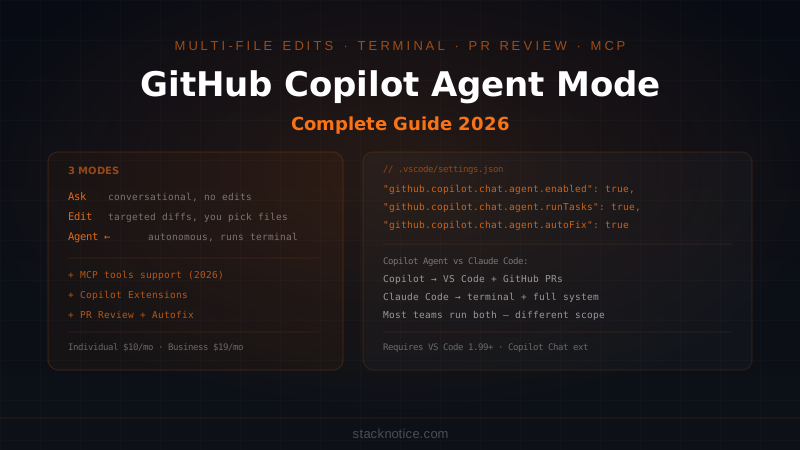
Cursor vs GitHub Copilot
Both live in the editor, but they take different approaches:
| Cursor | GitHub Copilot | |
|---|---|---|
| Base editor | VS Code fork (separate install) | Extension on existing VS Code |
| Tab completion | Multi-line, edit-aware | Line-by-line |
| Context | Full codebase semantic search | Workspace (limited) |
| Project rules | .cursor/rules/*.mdc | None |
| Agent mode | Yes (terminal + files) | Yes (terminal + files) |
| GitHub integration | Via MCP or CLI | Deep native (PRs, issues, CodeQL) |
| Models | Claude, GPT-4o, Gemini (choose per task) | GPT-4o / Claude (selectable) |
| Price | Free (limited) / $20/mo Pro | $10/mo Individual / $19/mo Business |
The key difference is depth. Cursor's tab completion is genuinely smarter — it makes multi-line edits that feel like it understands what you're doing, not just completing text. And the @Codebase context for chat is more powerful than Copilot's workspace search.
Copilot has the edge on GitHub integration — PR review, CodeQL autofix, and issue creation are native features that Cursor doesn't match without extra setup.
Cursor vs Claude Code
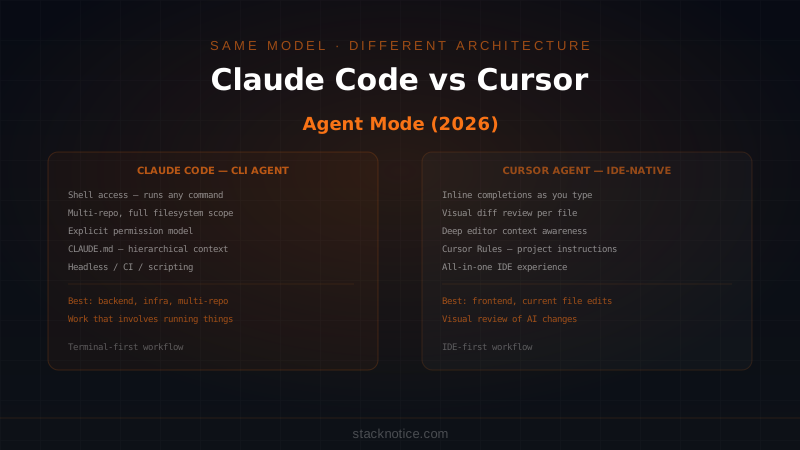
These tools get compared constantly but they're not really competing:
| Cursor | Claude Code | |
|---|---|---|
| Interface | Full IDE (visual) | Terminal |
| Where it runs | VS Code environment | Any editor + shell |
| Context | Current workspace | Full filesystem |
| Persistent memory | Project Rules | CLAUDE.md |
| Automation / hooks | None | Full hook system |
| Multi-agent | Background Agents (beta) | Yes (subagents) |
| System access | Limited to workspace | Full shell access |
| Best for | Writing code in the IDE | Automation, scripting, complex multi-repo tasks |
Most developers who use both describe the same pattern: Cursor for active feature development (writing components, refactoring functions, debugging in the editor), Claude Code for larger operations (running migrations, setting up CI, cross-repo changes, scripted workflows).
Neither replaces the other — they operate at different levels. Cursor is an IDE; Claude Code is a system operator.
Practical Workflow
Setting Up a New Project
- Open the project in Cursor
- Create
.cursor/rules/general.mdcwith your project conventions - Add
@Docsfor your main dependencies - Run
@Codebasea few times to verify it indexes correctly
Writing a New Feature
Agent mode prompt:
Add a "draft" post status to the existing publishing system.

Requirements:
- Draft posts are saved but not visible in the public blog listing
- Authors can see their own drafts at /dashboard/posts
- Add "Save as draft" button to the post editor alongside "Publish"
- The status field should be: 'draft' | 'published' | 'archived'

Follow the existing post model in prisma/schema.prisma and the
pattern in app/dashboard/posts/page.tsx.
Reviewing AI Output
After any agent run, review diffs in the Source Control panel before committing. Check:
- Files modified match what you expected
- No extra changes the agent made "helpfully"
- Imports are correct (the model sometimes hallucinates package names)
- The logic matches the intent, not just the letter of the prompt
Using Chat for Investigation
Before modifying something you don't fully understand:
@Codebase Explain how the authentication middleware works.
What runs before a protected route is accessed?
Getting a clear picture of the existing code first leads to much better agent output than jumping straight into changes.
Notepads
Notepads are Cursor's scratchpad feature — persistent context you can attach to any chat:
- New Notepad → name it "Project context"
- Add key information: architecture decisions, current sprint goals, known technical debt
- Attach with
@Notepadin any conversation
Useful for longer sessions where you want the model to remember context across multiple conversations without putting it in rules (rules are for conventions, not session-specific context).
Background Agents
Background Agents (in beta as of mid-2026) let you kick off a long-running agent task and come back to it:
- Start a task in agent mode
- Click "Run in background"
- Continue working on other things
- Get notified when it completes
Early in development — use for tasks where you don't need to watch the execution in real time.
Common Mistakes
Not using Project Rules. Without rules, the model defaults to generic patterns that may not match your codebase. Add project-specific conventions on day one.
Over-relying on @Codebase in agent mode. For targeted tasks, be explicit about which files to touch. @Codebase is best for investigation, not as a substitute for clear prompts.
Accepting diffs without reviewing. Agent mode is fast but it's not infallible. The Source Control panel shows all changes — review them before committing.
Using agent mode for tiny changes. For a one-line fix, just type it. Agent mode adds overhead (planning, execution, review) that's only worth it for multi-file or complex tasks.
Pricing
| Plan | Price | Requests | Notes |
|---|---|---|---|
| Hobby | Free | 50 agent requests/month | Claude Sonnet 4.5 and GPT-4o |
| Pro | $20/mo | 500 agent requests/month | All models, Privacy mode |
| Business | $40/mo/seat | Unlimited (fair use) | SSO, org privacy enforcement, admin controls |
Pro is the practical entry point for anyone using Cursor seriously. The 500 agent request limit covers heavy daily use, and the model selection (including Claude Opus 4 for hard problems) is worth it.
If you're evaluating, start with Hobby. The 50 agent requests/month is enough to understand the tool's value before committing.
Cursor fits best when you want AI that stays inside the IDE — same environment you debug in, same files you edit manually, same git panel you use for commits. If you're already spending most of your day in VS Code, the switch to Cursor is essentially free and the AI capabilities are meaningfully better than what any extension achieves.
For more on how AI coding tools compare, see Claude Code vs Cursor vs Windsurf vs Copilot and GitHub Copilot Agent Mode.